
Amazon Chime workflow
See PowerPoint speaker notes in Amazon Chime on one Mac screen.
NotesPresenter helps you share PowerPoint in Amazon Chime while keeping speaker notes, current-slide context, and timing private on your Mac.
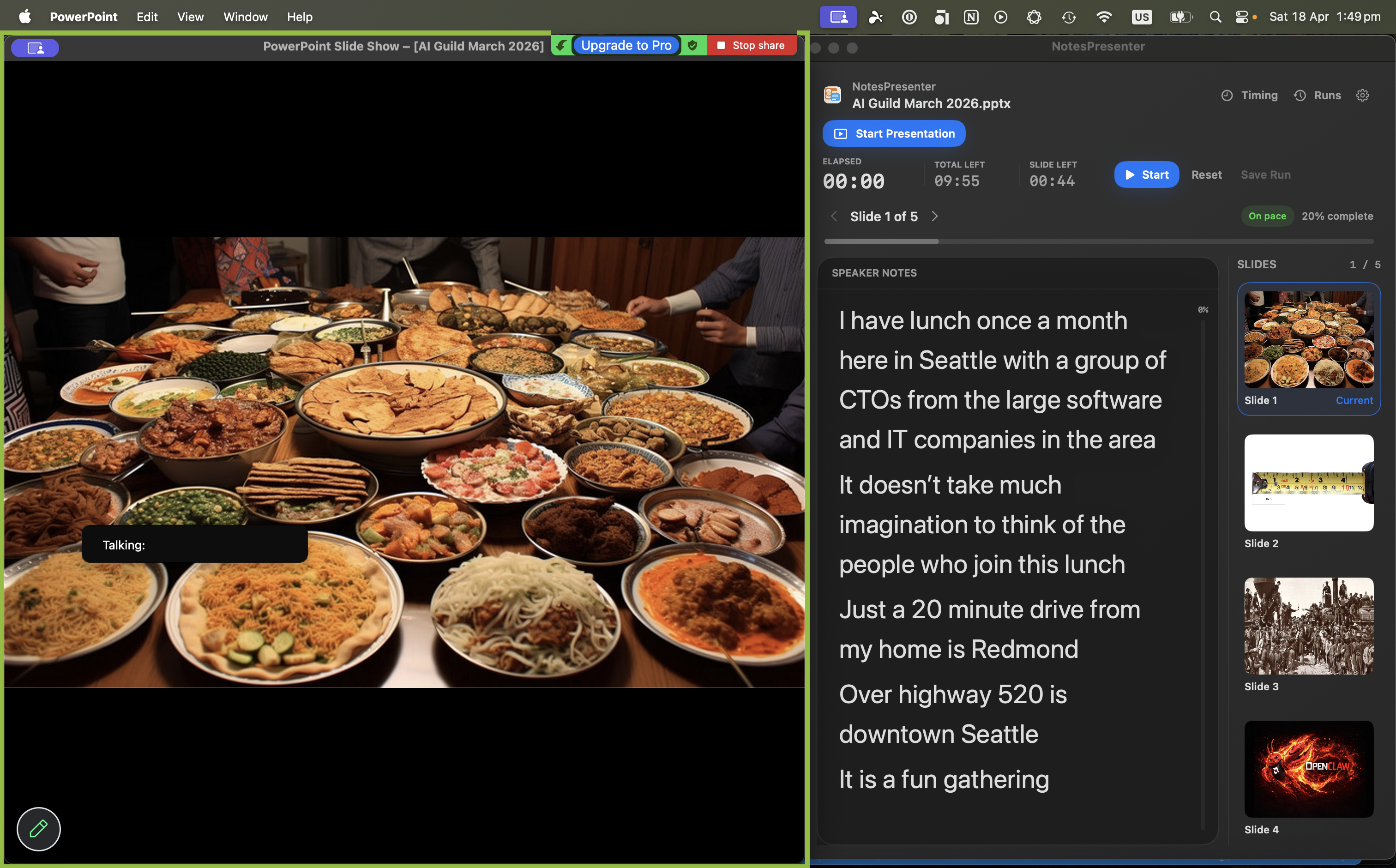
- Use PowerPoint and NotesPresenter side by side
- Share the PowerPoint window when presenting in Chime
- Keep notes, thumbnails, and timing private locally
Short answer
Can I use PowerPoint speaker notes in Amazon Chime?
Yes. Use NotesPresenter locally for speaker notes and share the PowerPoint window in Chime.
Chime presenting
For Chime presentations where one Mac screen has to handle the deck and notes.
Keep the deck visible
Run PowerPoint and keep NotesPresenter beside it so your notes and current slide context stay in view.
Share without notes
Share PowerPoint rather than the entire desktop so Chime participants do not see your notes window.
Stay on pace
Use timing and rehearsal support to keep a client call, webinar, or team presentation on schedule.
Setup steps
Use PowerPoint speaker notes in Chime in three steps.
- 1
Open the deck locally
Open PowerPoint and load the same deck in NotesPresenter for private notes and slide context.
- 2
Arrange the windows
Keep PowerPoint and NotesPresenter visible side by side on your Mac screen.
- 3
Share PowerPoint in Chime
Share the PowerPoint window so participants see slides while NotesPresenter stays private.
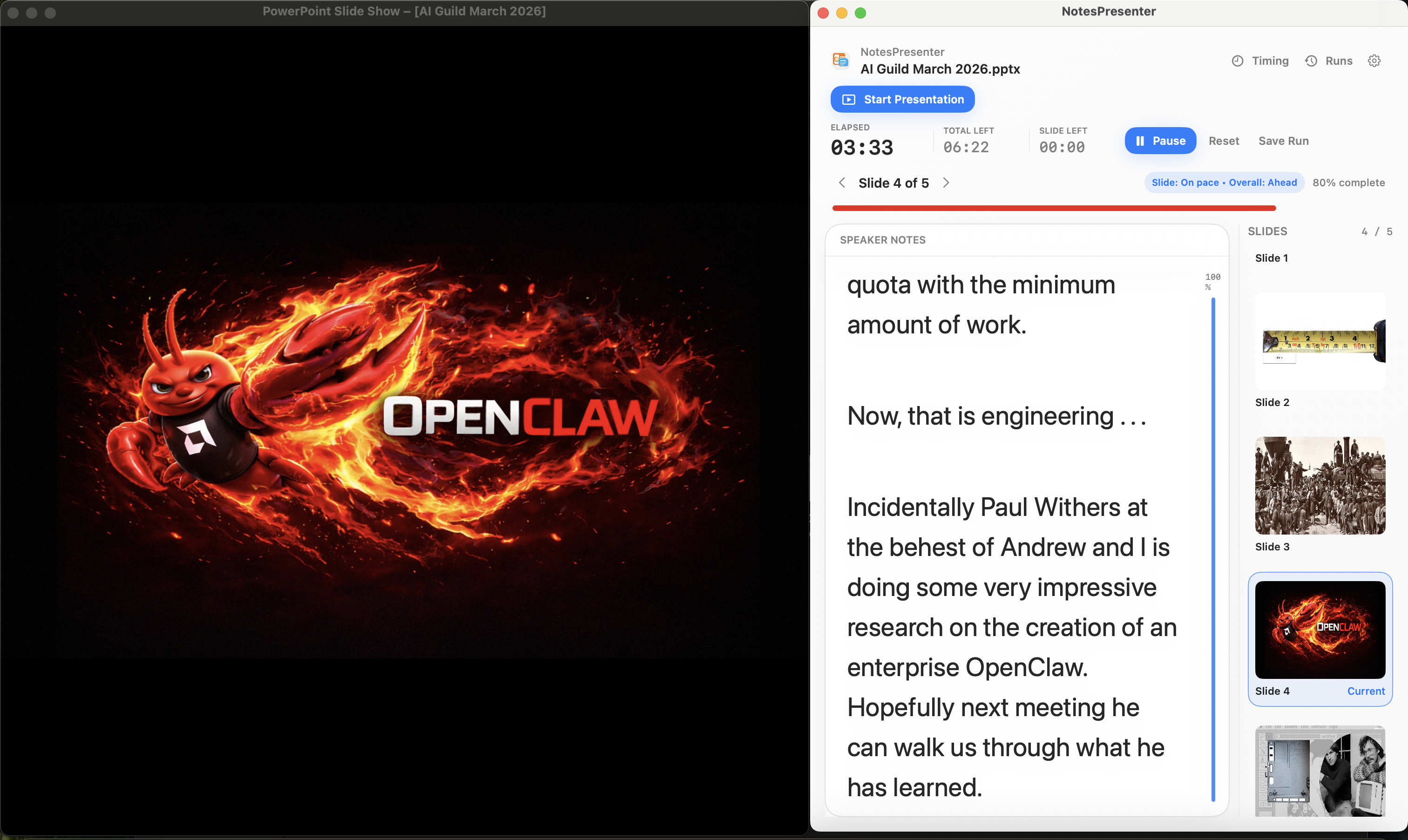
Presentation workflow
Share the deck. Keep the notes.
The safest one-screen setup is simple: prepare notes locally, share only PowerPoint, and keep NotesPresenter visible to you.
Default sharing rule
Choose the PowerPoint window in Zoom, Teams, or Meet. Do not share the full desktop.
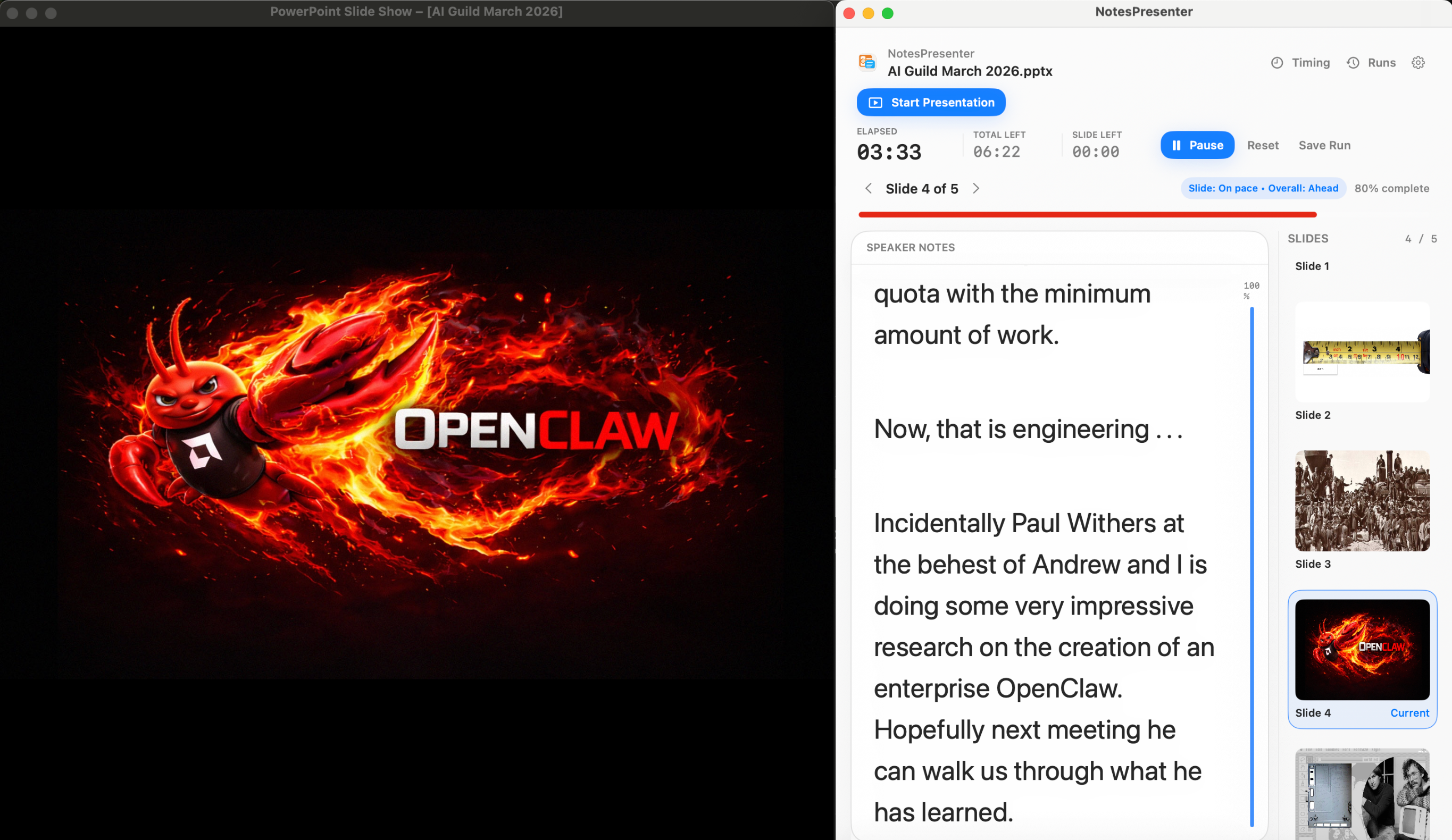
Step 01
Open the deck
Load your PowerPoint file in NotesPresenter so your slide notes and timing plan are ready beside the deck.
You see
The deck notes, slide thumbnails, and timing plan before the presentation starts.
Audience sees
Nothing yet. This is your private setup step.
Result
Your speaker notes are ready before Zoom, Teams, or Meet starts sharing.
Onboarding flow
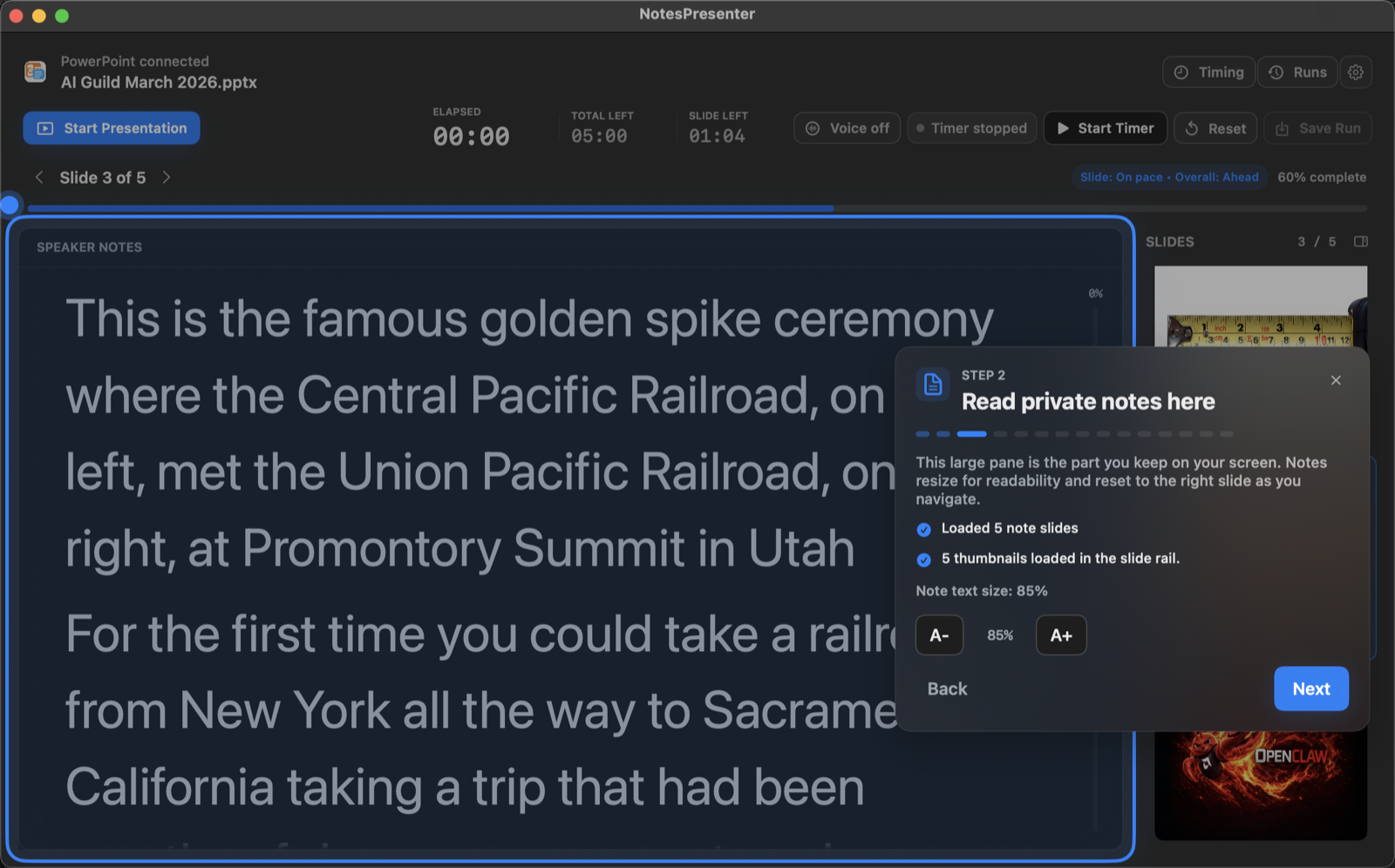
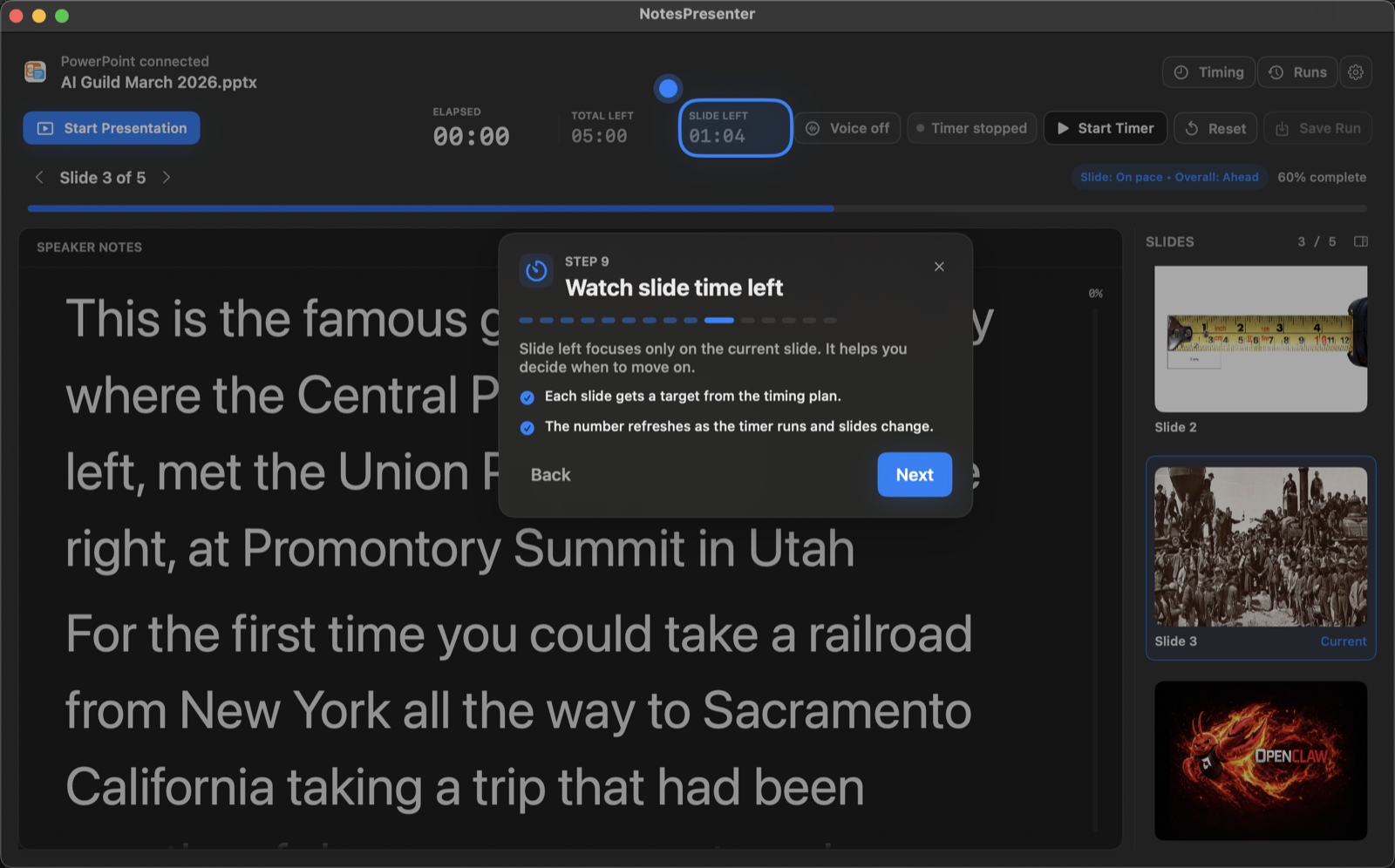
Learn the workflow before your first talk.
The onboarding walkthrough covers deck connection, private notes, presentation start, and timing so the one-screen setup is clear before you go live.
View onboarding flow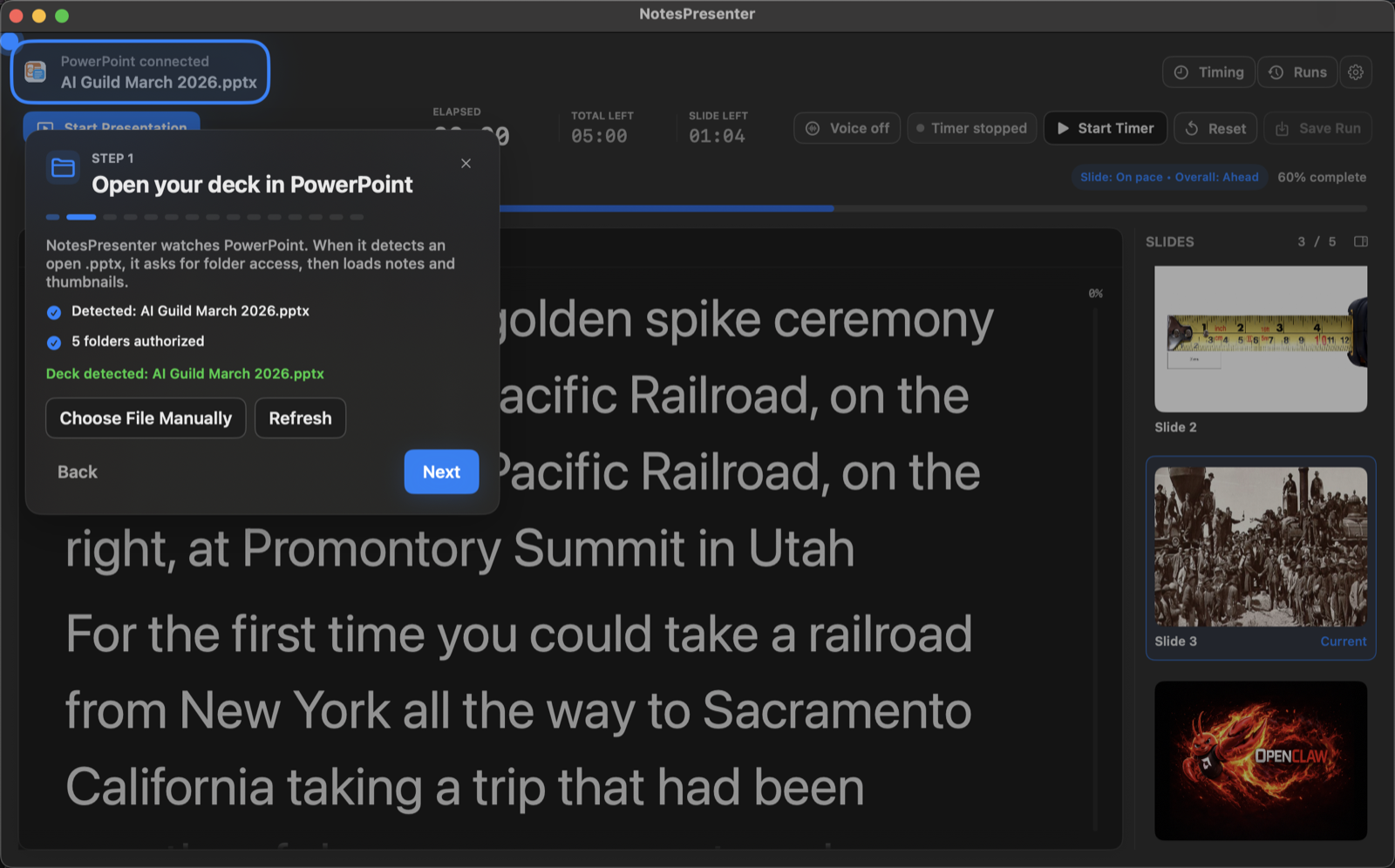
FAQ
Common questions about PowerPoint speaker notes in Amazon Chime.
Can I keep Chime attendees from seeing notes?
Yes, when you share the PowerPoint window instead of your whole desktop.
Can this work without a second display?
Yes. NotesPresenter is designed for one-screen Mac presenting with notes, slide context, and timing.
Will Chime participants see NotesPresenter?
No, not if you share the PowerPoint window instead of the full desktop.
Does this require Presenter View?
No. NotesPresenter works beside PowerPoint for one-screen note visibility and timing.
Can I use this for client presentations?
Yes. It is useful for client calls where you want internal notes and prompts to stay private.
Does the PowerPoint file stay local?
Yes. NotesPresenter reads your PowerPoint file locally and does not require cloud upload.
Present in Chime with private PowerPoint notes.
NotesPresenter keeps speaker notes, slide context, and timing visible locally while Chime shares the PowerPoint deck.