
Consulting presentations
Use private PowerPoint notes for consulting presentations on Mac.
NotesPresenter helps consultants keep client-specific talking points, transitions, and timing visible beside PowerPoint without exposing notes during a call.
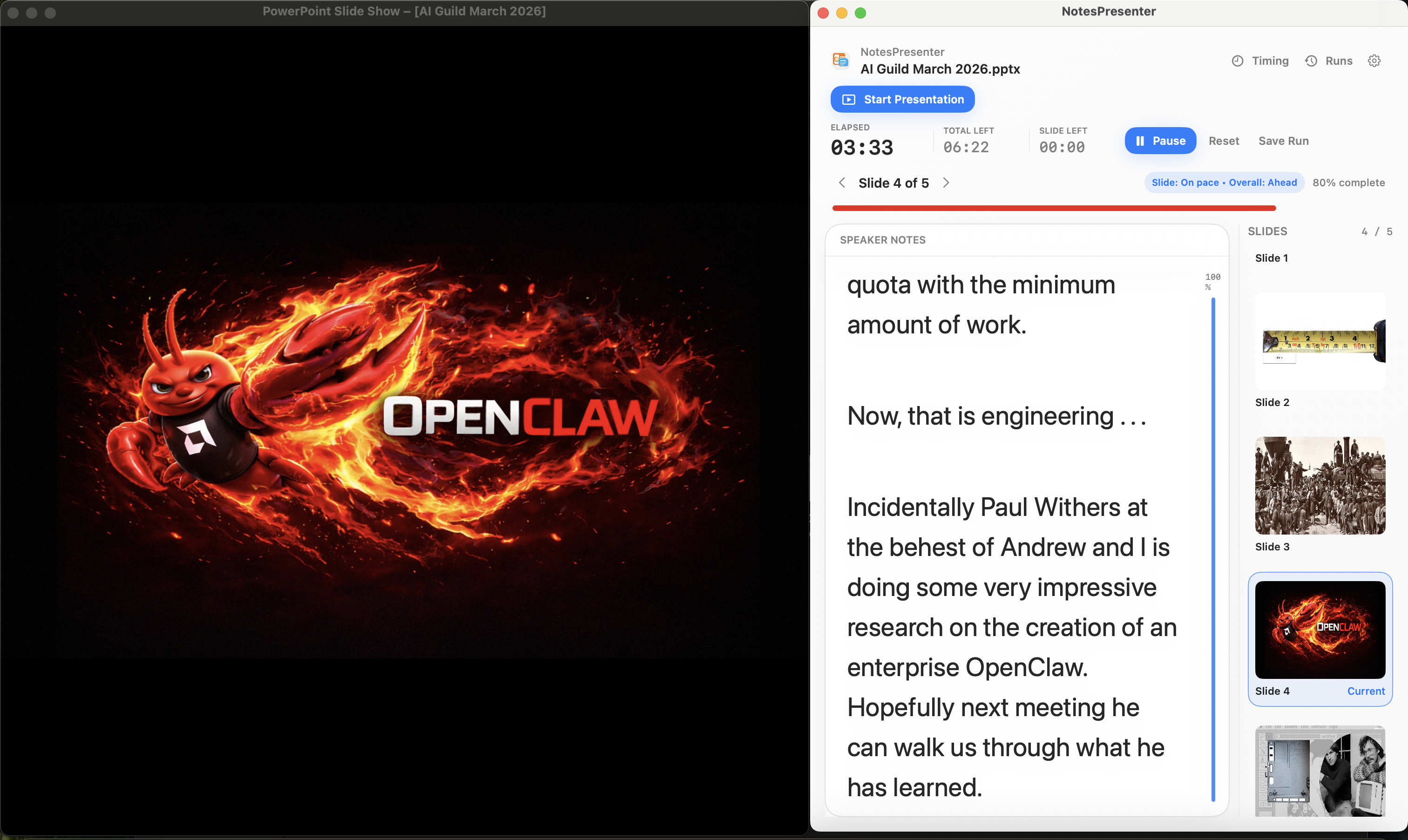
- Keep client talking points private
- Share the deck without showing presenter notes
- Track timing for workshops, pitches, and readouts
Short answer
Can I keep client notes private while sharing PowerPoint?
Yes. Share only the PowerPoint window and keep NotesPresenter visible locally for private speaker notes.
Client presentation workflow
For client-facing decks where your notes should stay off the shared screen.
Keep sensitive prompts private
Use notes for pricing reminders, objection handling, next steps, or internal context without sharing them.
Stay oriented in long decks
Use current-slide context and thumbnails to move through proposal, workshop, or readout decks with less friction.
Control the meeting pace
Use timing plans to reserve enough time for discussion, decisions, and action items.
Setup steps
Prepare a client presentation in three steps.
- 1
Put private prompts in slide notes
Add discovery questions, decision points, objection handling, or handoff notes to the relevant slides.
- 2
Open the deck locally
Use NotesPresenter to keep notes, thumbnails, and timing beside PowerPoint on your Mac.
- 3
Share the PowerPoint window
During the client call, share PowerPoint only so your notes remain private.
Presentation workflow
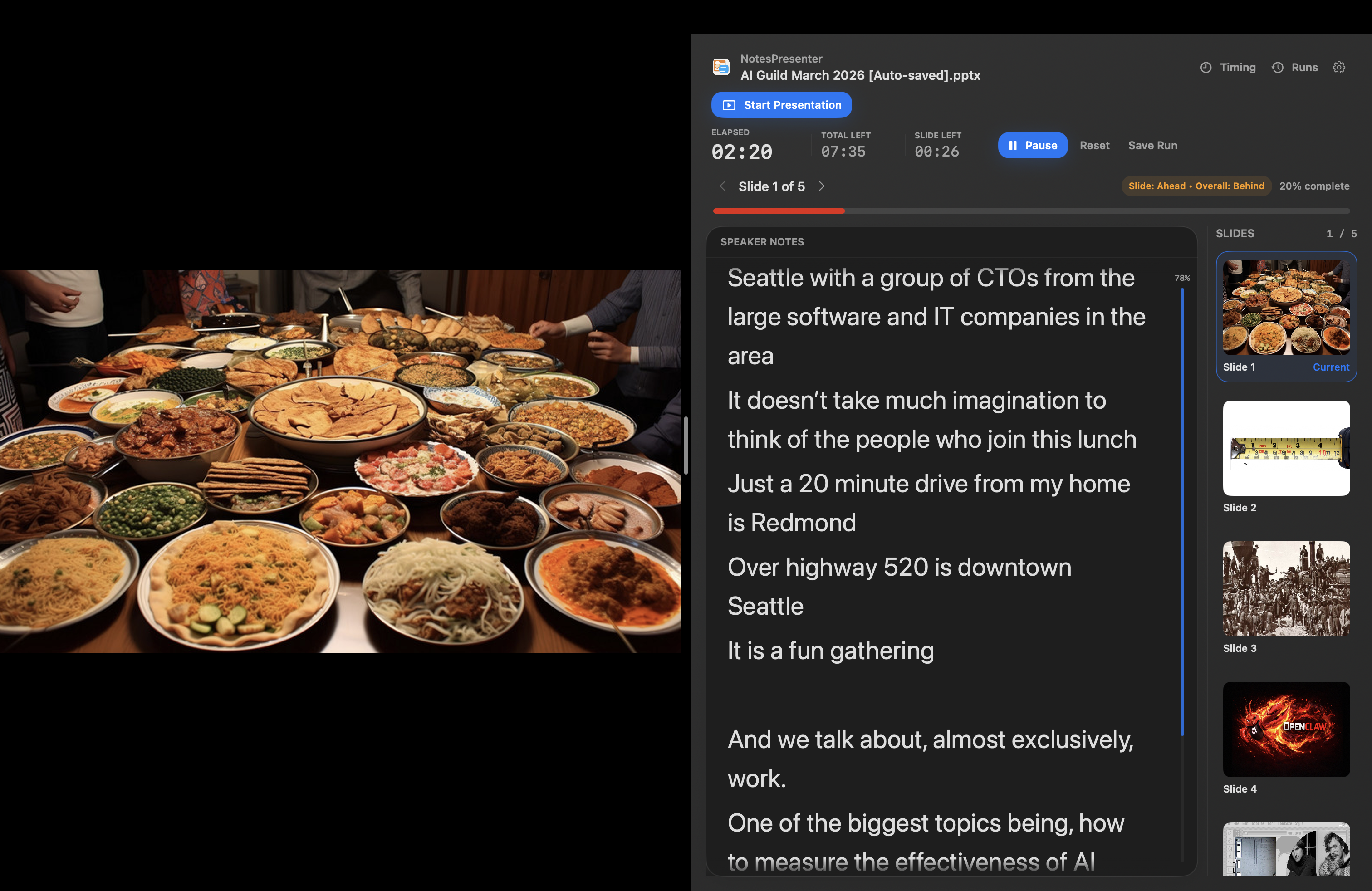
Share the deck. Keep the notes.
The safest one-screen setup is simple: prepare notes locally, share only PowerPoint, and keep NotesPresenter visible to you.
Default sharing rule
Choose the PowerPoint window in Zoom, Teams, or Meet. Do not share the full desktop.
Step 01
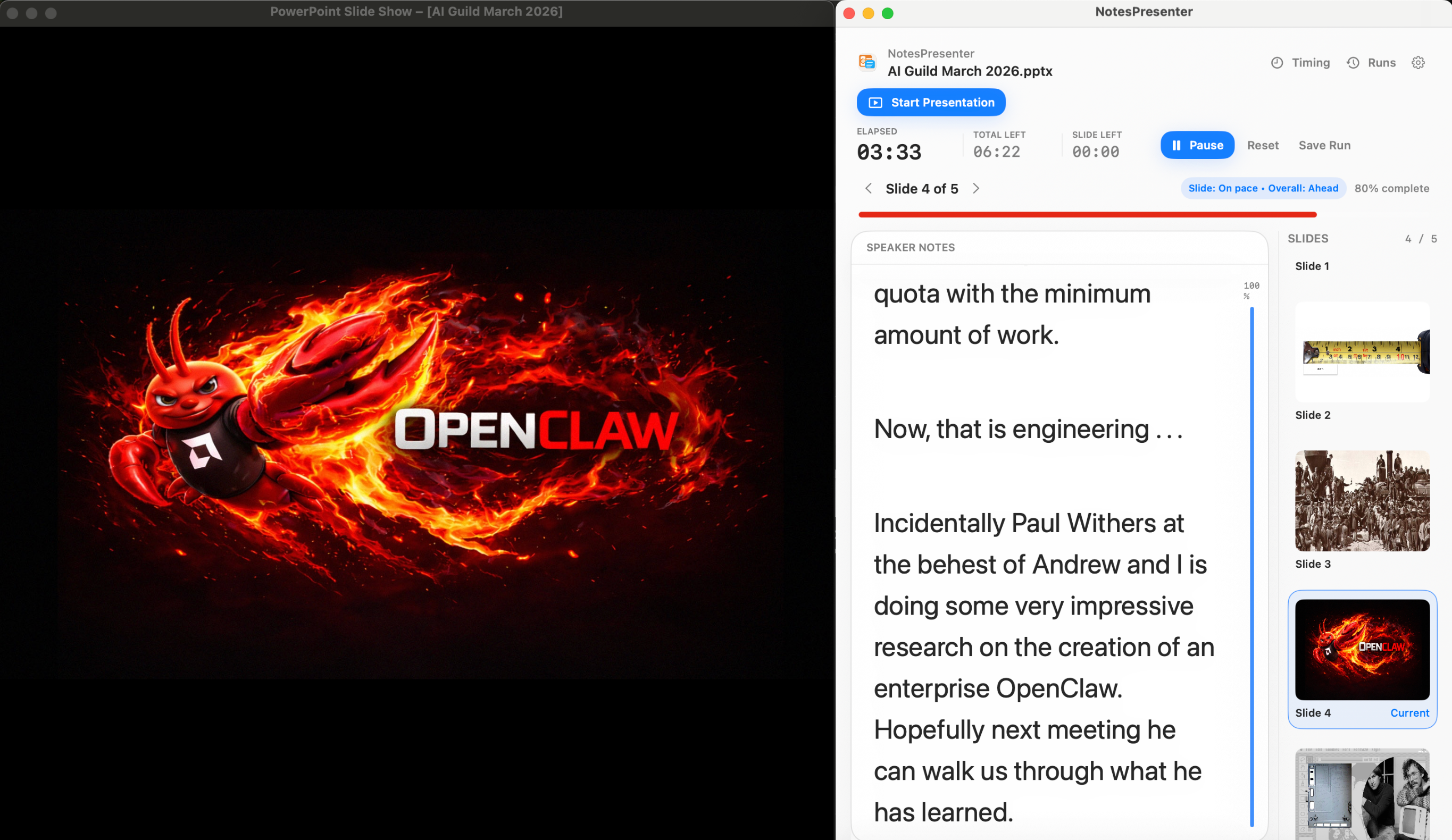
Open the deck
Load your PowerPoint file in NotesPresenter so your slide notes and timing plan are ready beside the deck.
You see
The deck notes, slide thumbnails, and timing plan before the presentation starts.
Audience sees
Nothing yet. This is your private setup step.
Result
Your speaker notes are ready before Zoom, Teams, or Meet starts sharing.
Onboarding flow
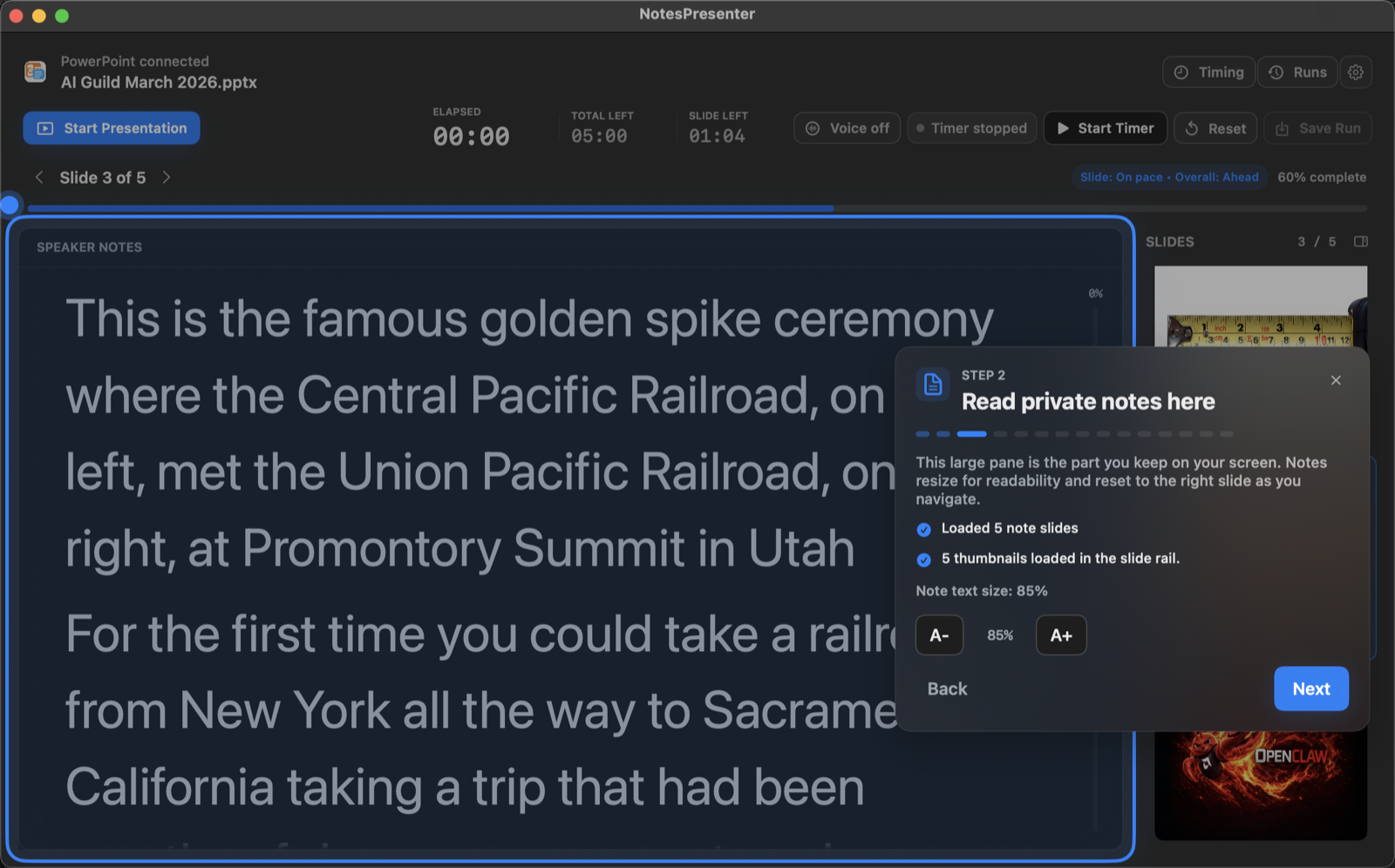
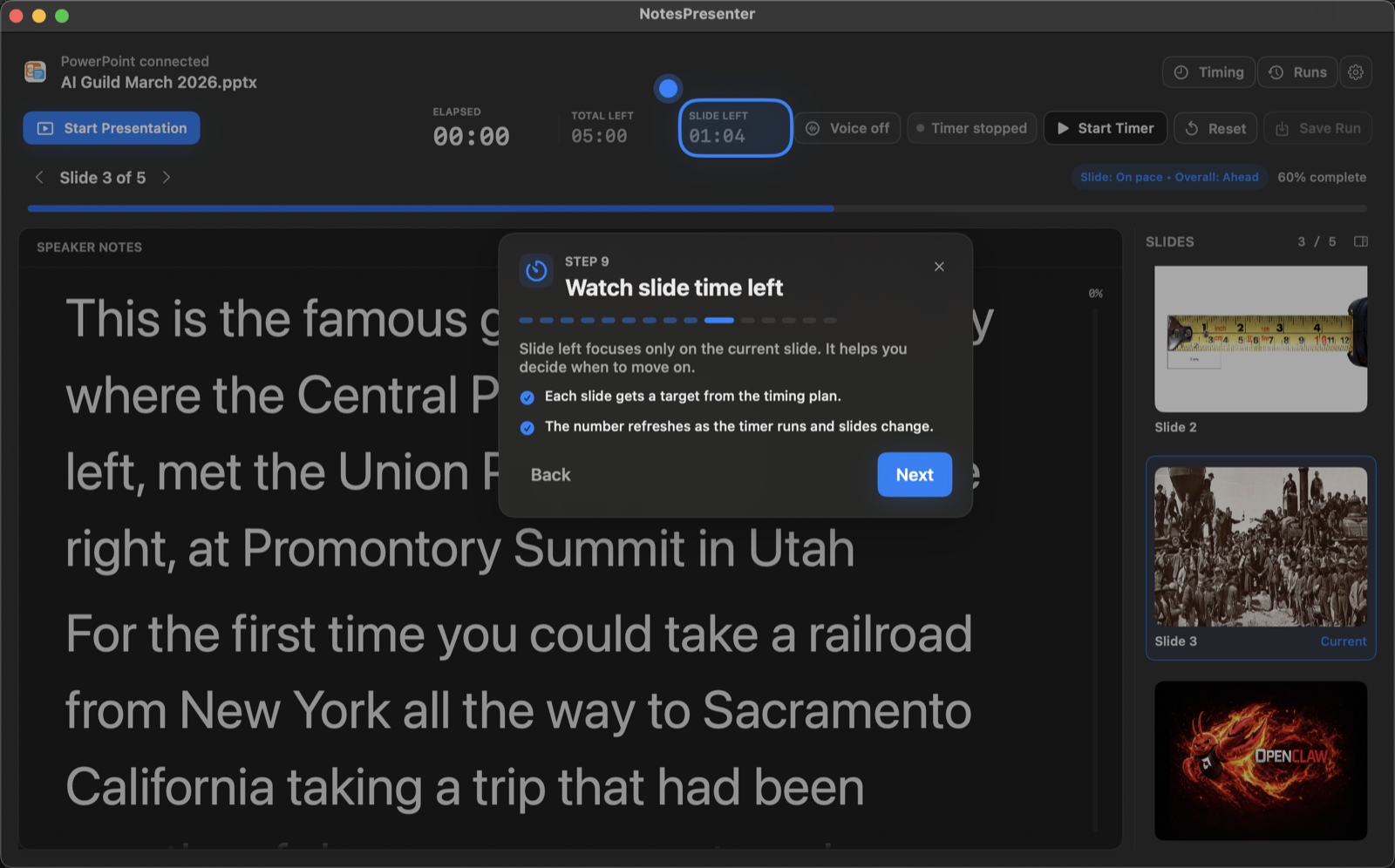
Learn the workflow before your first talk.
The onboarding walkthrough covers deck connection, private notes, presentation start, and timing so the one-screen setup is clear before you go live.
View onboarding flow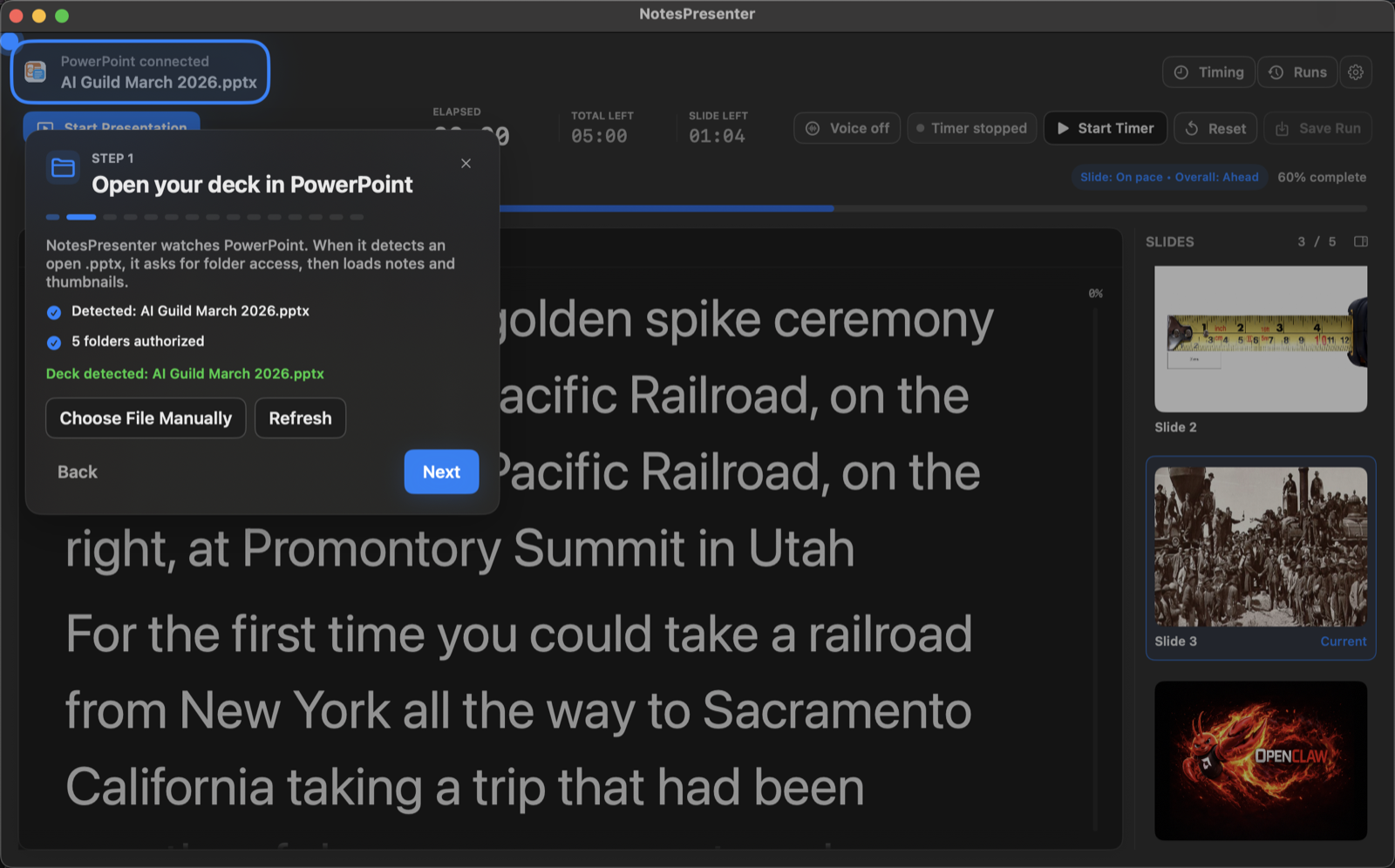
FAQ
Common questions about PowerPoint notes for consultants.
Does this work for client calls on one screen?
Yes. NotesPresenter is built for one-screen Mac workflows with PowerPoint, notes, slide context, and timing visible together.
Does NotesPresenter upload client decks?
No. NotesPresenter reads PowerPoint files locally and does not require cloud upload or an account.
Can clients see my internal notes?
No, not when you share only the PowerPoint window. NotesPresenter remains visible locally on your Mac.
Is this useful for workshops?
Yes. NotesPresenter helps keep prompts, agenda cues, and timing visible during consulting workshops and client readouts.
Is client data uploaded?
No. PowerPoint files stay on your Mac. NotesPresenter does not require an account or cloud upload.
Can I rehearse a client presentation?
Yes. Use timing plans and rehearsal runs to check whether each section fits the meeting agenda.
Present client decks with private notes on one Mac screen.
NotesPresenter keeps consulting notes, slide context, and timing beside PowerPoint while the client sees only the deck.