
Slide timing
Plan and rehearse PowerPoint slide timing on Mac.
NotesPresenter helps you assign slide timing, rehearse against the plan, and keep speaker notes visible beside PowerPoint.
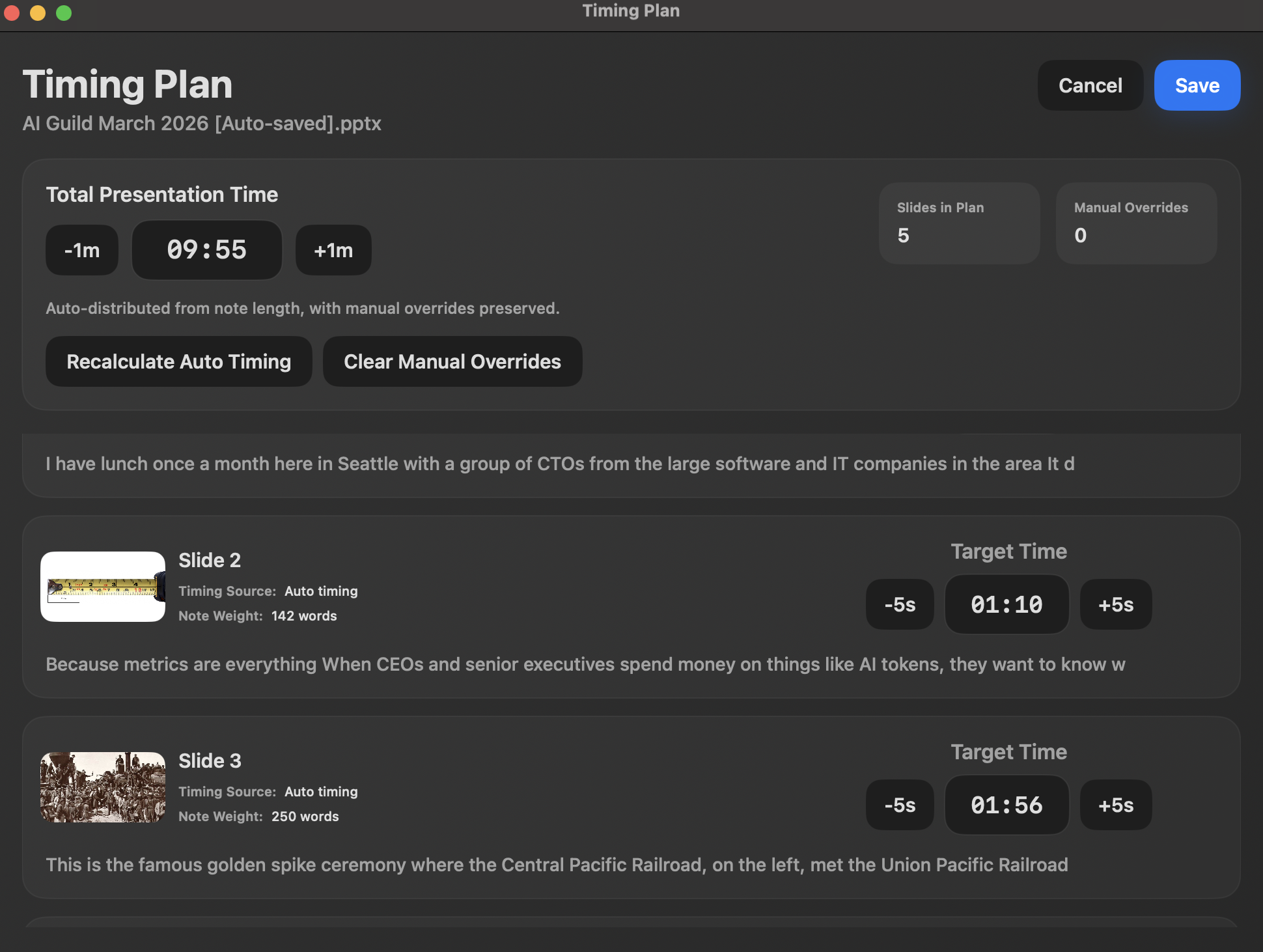
- Set a total time and per-slide targets
- Adjust slide timing for sections that need more attention
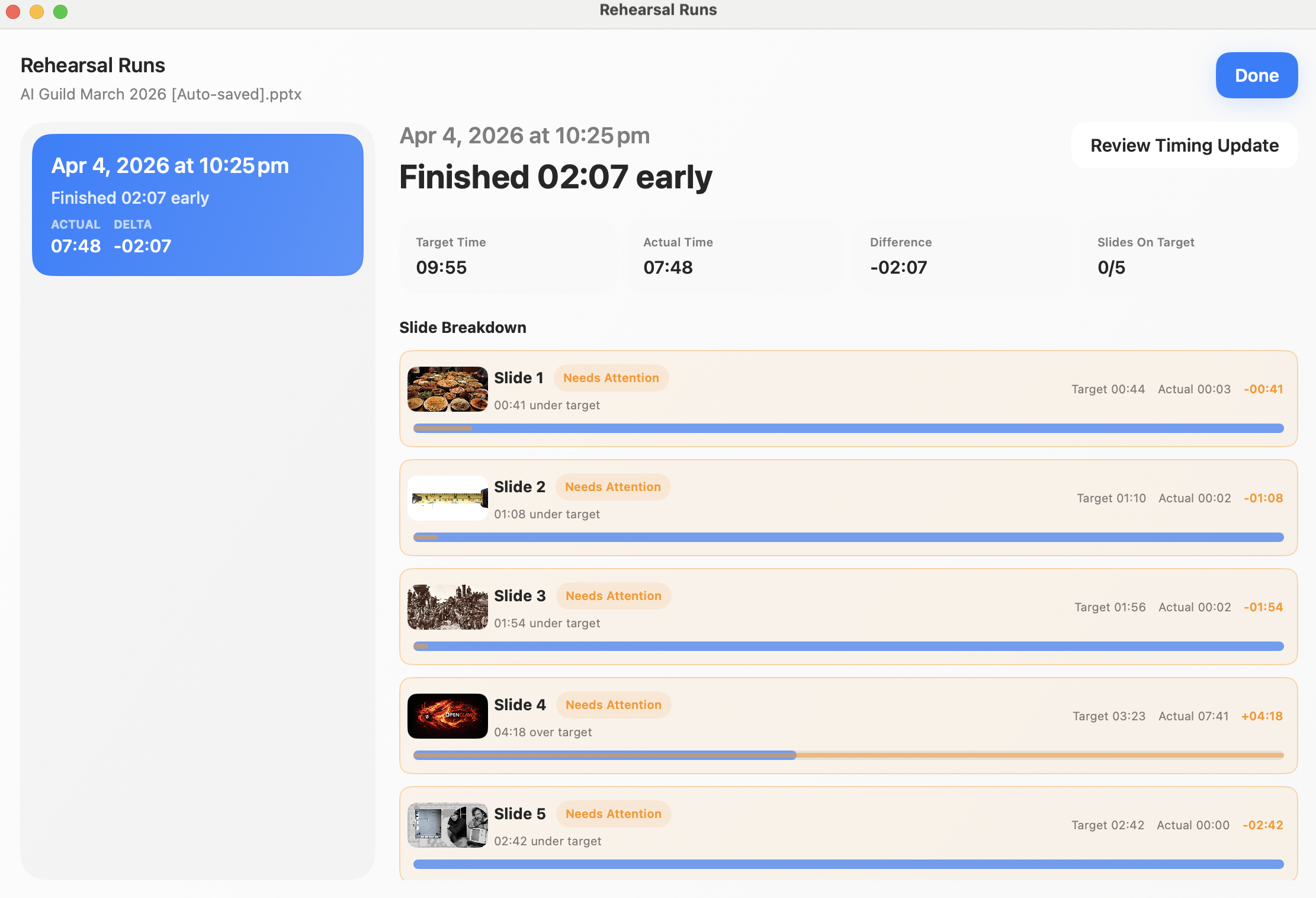
- Use rehearsal runs to see where pacing needs work
Short answer
Can I set timing for individual PowerPoint slides?
Yes. NotesPresenter lets you plan per-slide targets and rehearse against those targets on Mac.
Per-slide planning
For presenters who need more than a single countdown timer.
Plan slide-by-slide
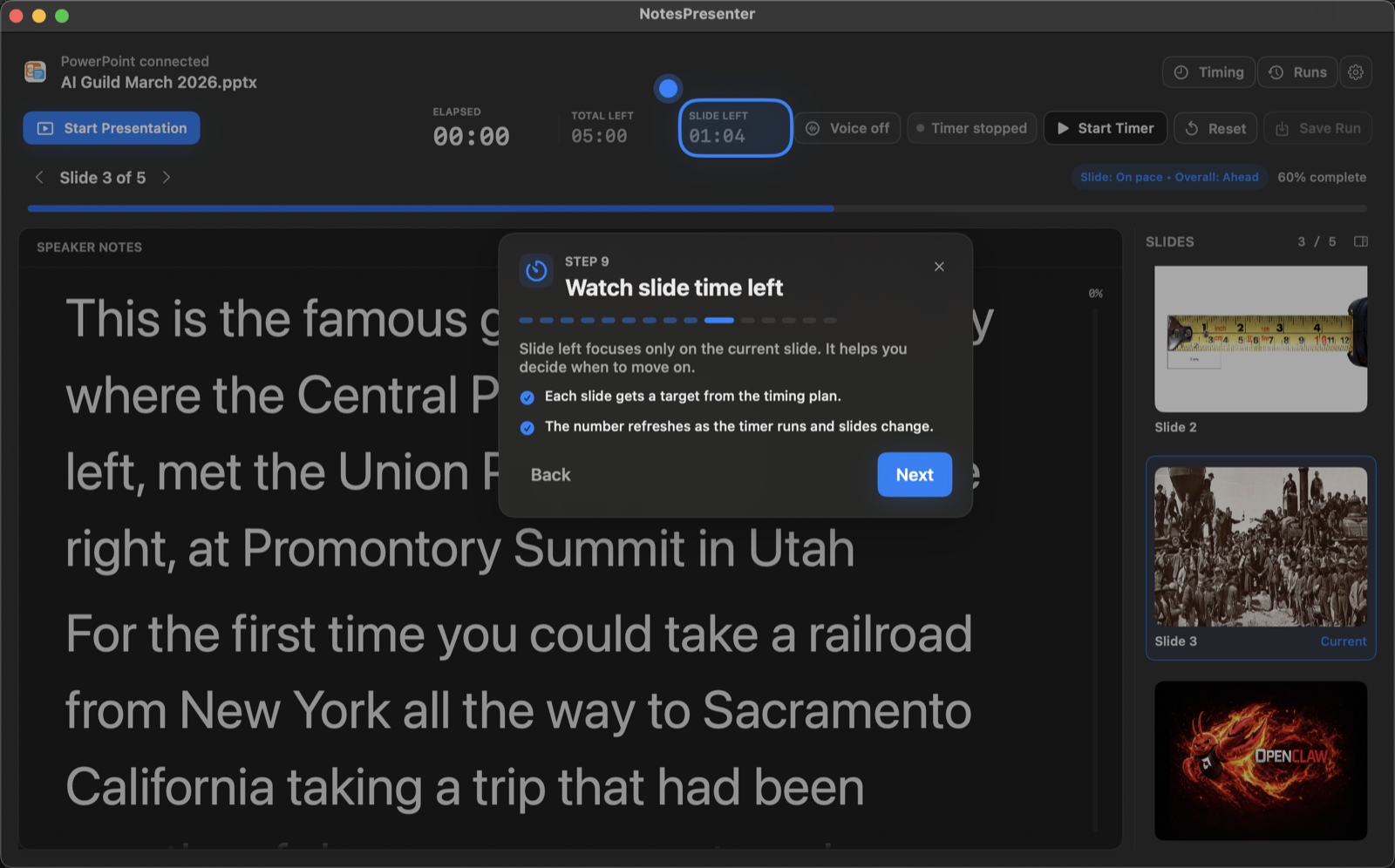
Give important slides more time and keep transition slides short instead of splitting time evenly by accident.
Rehearse with context
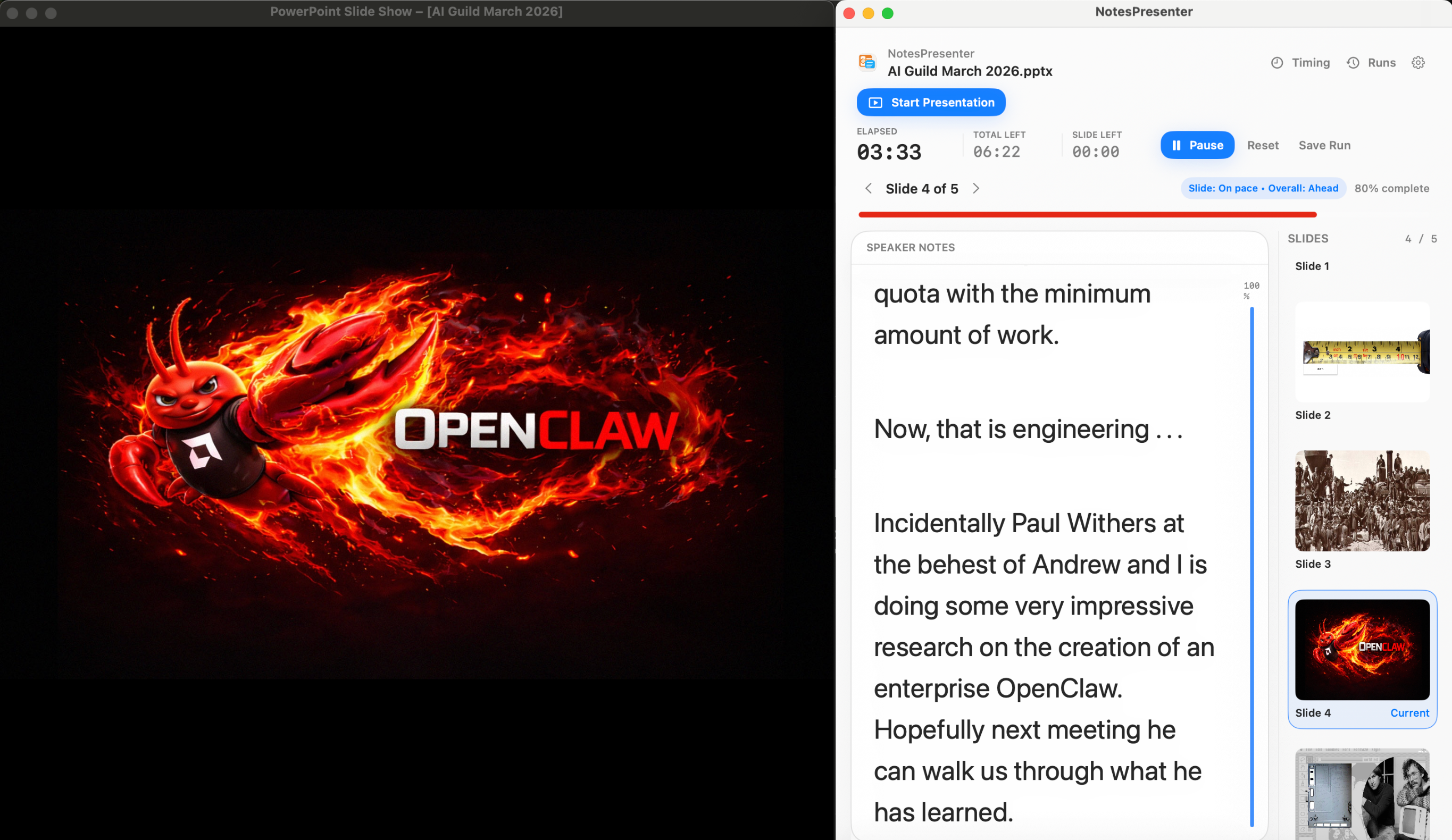
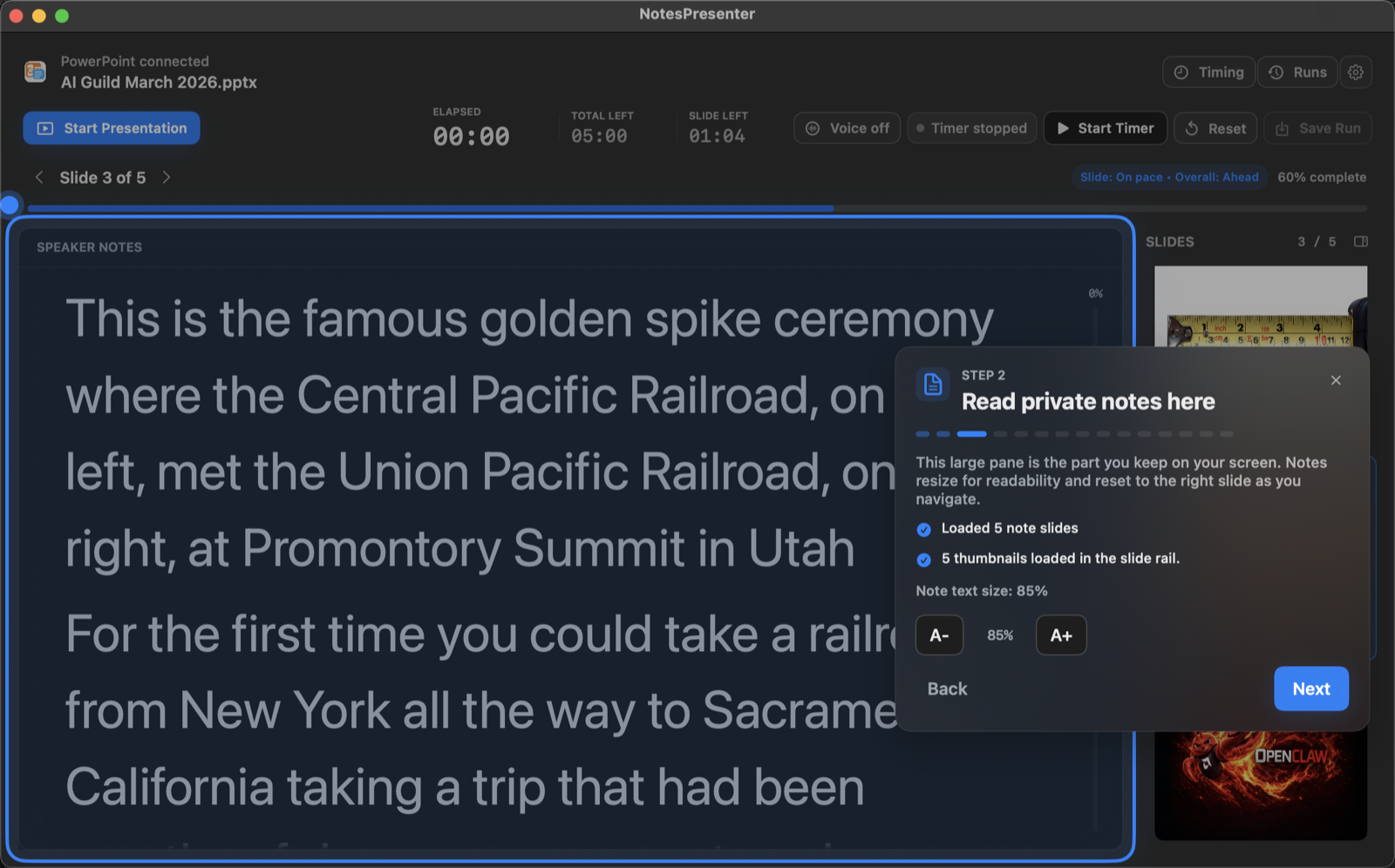
Practice with speaker notes, slide thumbnails, and the current slide visible so rehearsal matches delivery.
Tune the deck
Use actual rehearsal timing to decide which slides need shorter notes, fewer details, or more time.
Setup steps
Build a slide timing plan in three steps.
- 1
Choose the total time
Start with the length of the presentation slot, such as 5, 15, 30, or 45 minutes.
- 2
Tune slide targets
Adjust individual slide timing for introductions, demos, key arguments, or Q&A setup.
- 3
Rehearse and revise
Run the presentation, compare target and actual timing, then edit notes or slide targets as needed.
Presentation workflow
Share the deck. Keep the notes.
The safest one-screen setup is simple: prepare notes locally, share only PowerPoint, and keep NotesPresenter visible to you.
Default sharing rule
Choose the PowerPoint window in Zoom, Teams, or Meet. Do not share the full desktop.
Step 01
Open the deck
Load your PowerPoint file in NotesPresenter so your slide notes and timing plan are ready beside the deck.
You see
The deck notes, slide thumbnails, and timing plan before the presentation starts.
Audience sees
Nothing yet. This is your private setup step.
Result
Your speaker notes are ready before Zoom, Teams, or Meet starts sharing.
Onboarding flow
Learn the workflow before your first talk.
The onboarding walkthrough covers deck connection, private notes, presentation start, and timing so the one-screen setup is clear before you go live.
View onboarding flow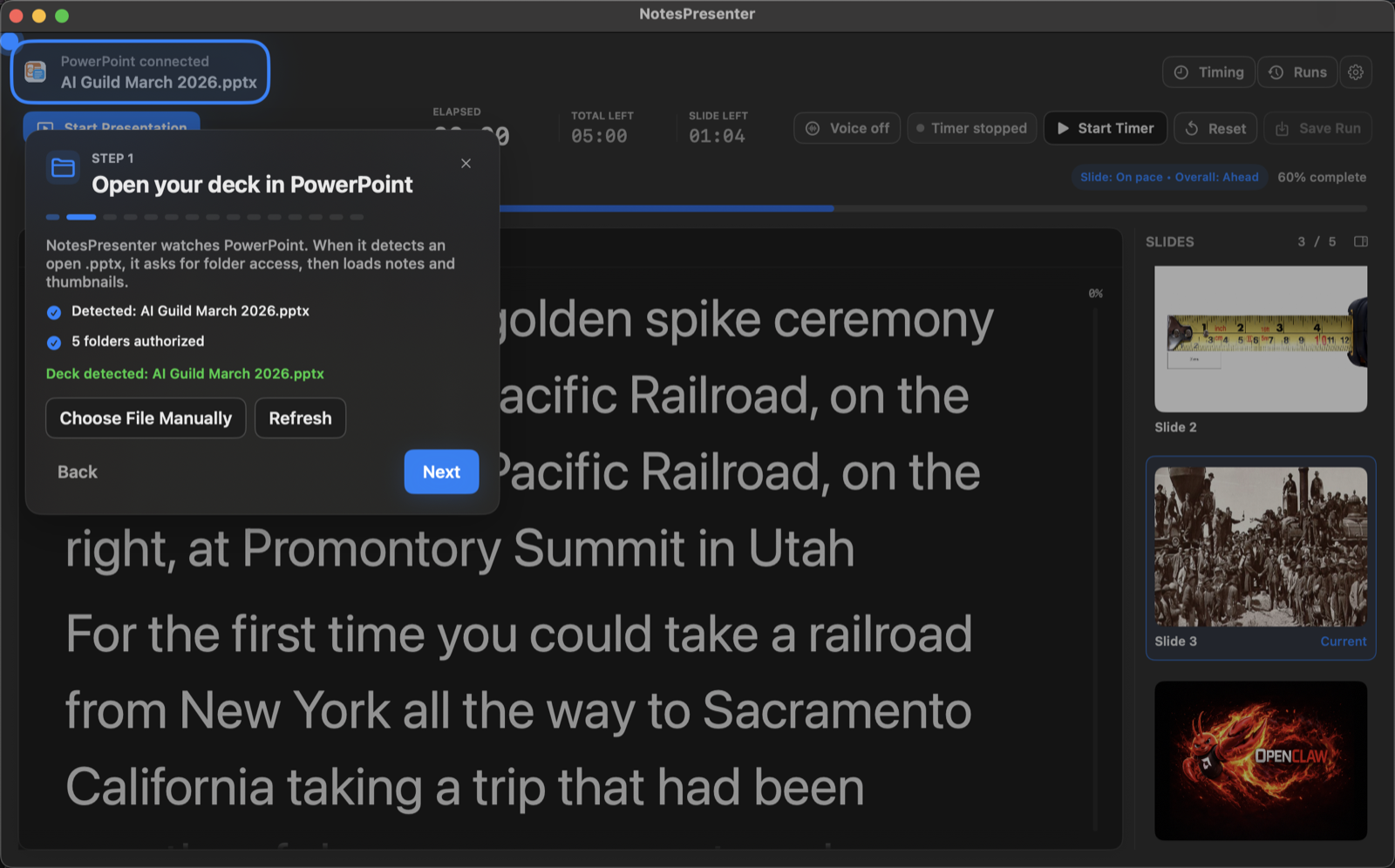
FAQ
Common questions about PowerPoint slide timing rehearsal on Mac.
Can I override slide timing manually?
Yes. You can adjust slide targets when some parts of the presentation need more or less time.
Can I review timing after rehearsal?
Yes. Rehearsal runs show timing results so you can improve pacing before the live presentation.
Is this the same as PowerPoint automatic slide timings?
No. NotesPresenter is focused on rehearsal and live pacing with notes visible, not automatically advancing slides.
Can I use timing while presenting live?
Yes. NotesPresenter shows pacing information while your notes and slide context remain visible.
Does this work for long decks?
Yes. The timing plan and thumbnail context help when a presentation has many slides or uneven sections.
Does NotesPresenter upload the deck?
No. The PowerPoint file stays on your Mac and does not require a cloud service.
Plan PowerPoint slide timing before the live talk.
NotesPresenter helps Mac presenters rehearse per-slide timing with speaker notes, current-slide context, and rehearsal history.