
Teaching workflow
Use PowerPoint speaker notes while teaching from one Mac screen.
NotesPresenter helps teachers keep lesson notes, slide context, and pacing visible beside PowerPoint during class, remote lessons, or recorded lectures.
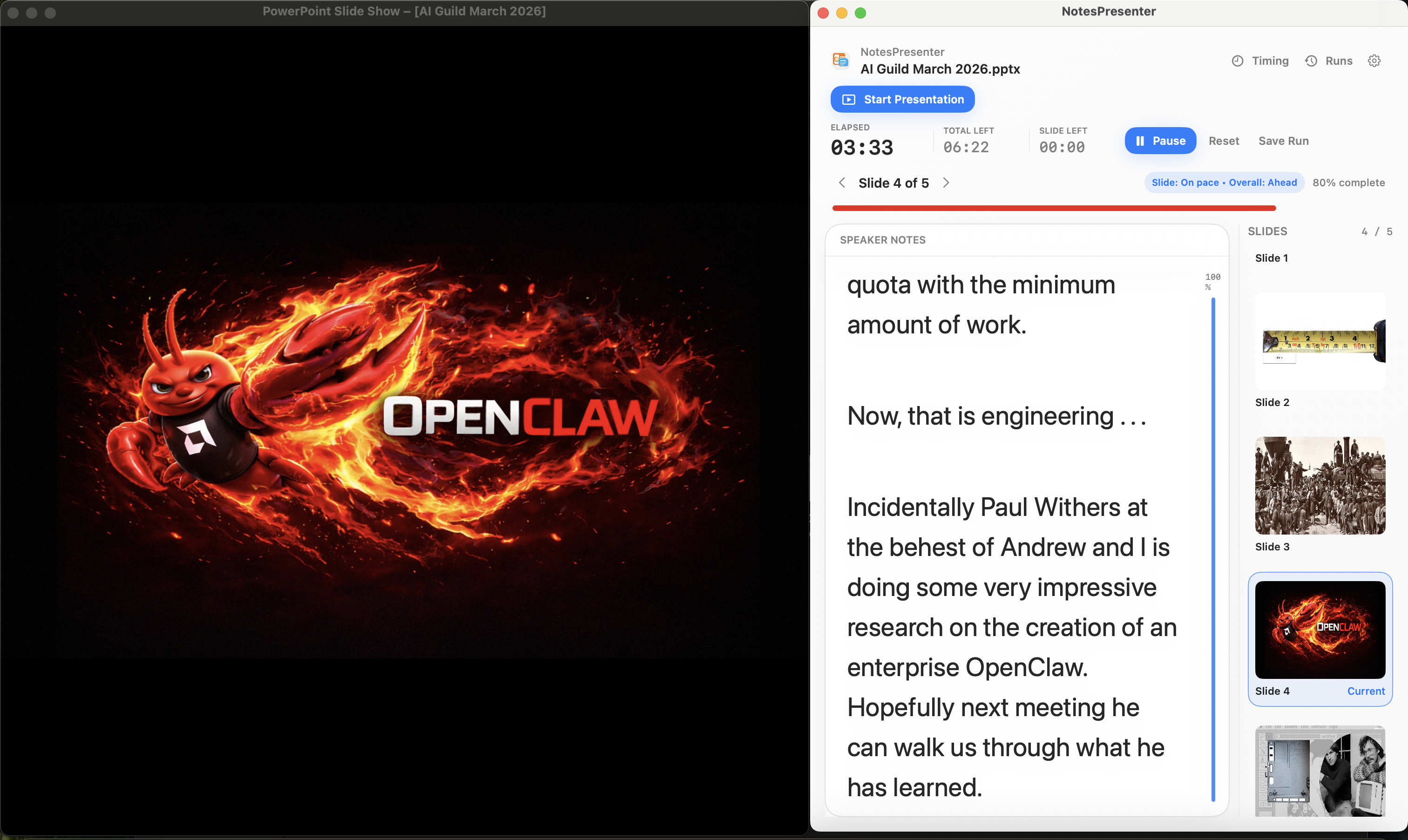
- Keep lesson prompts beside the current slide
- Share PowerPoint without showing private teaching notes
- Track timing for classes, lectures, and recorded lessons
Short answer
Can teachers use PowerPoint notes on one Mac screen?
Yes. NotesPresenter keeps lesson notes, slide context, and timing visible beside PowerPoint on one Mac screen.
Classroom use
For teachers who need the lesson plan visible without showing it to students.
Keep prompts visible
Use slide notes for examples, reminders, discussion prompts, and transition cues while the deck stays open.
Teach online privately
Share only the PowerPoint window in Zoom, Teams, or Meet so students see the lesson slides, not your notes.
Stay within the period
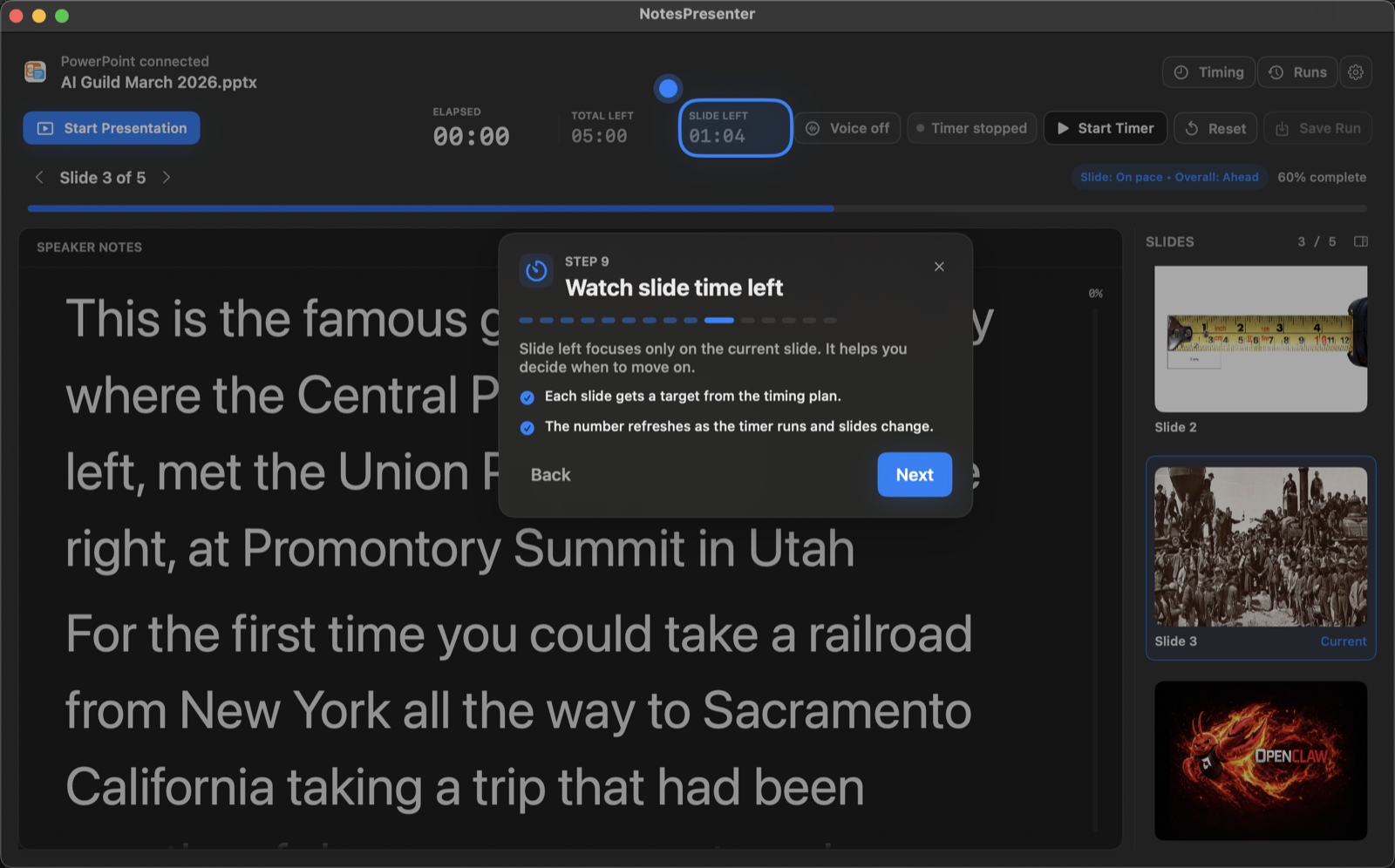
Use timing plans and pace status to keep a class, lecture, or recorded lesson from running long.
Setup steps
Build a teaching notes setup in three steps.
- 1
Put lesson prompts in PowerPoint notes
Use each slide note for examples, questions, reminders, or timing cues for that part of class.
- 2
Open the deck in NotesPresenter
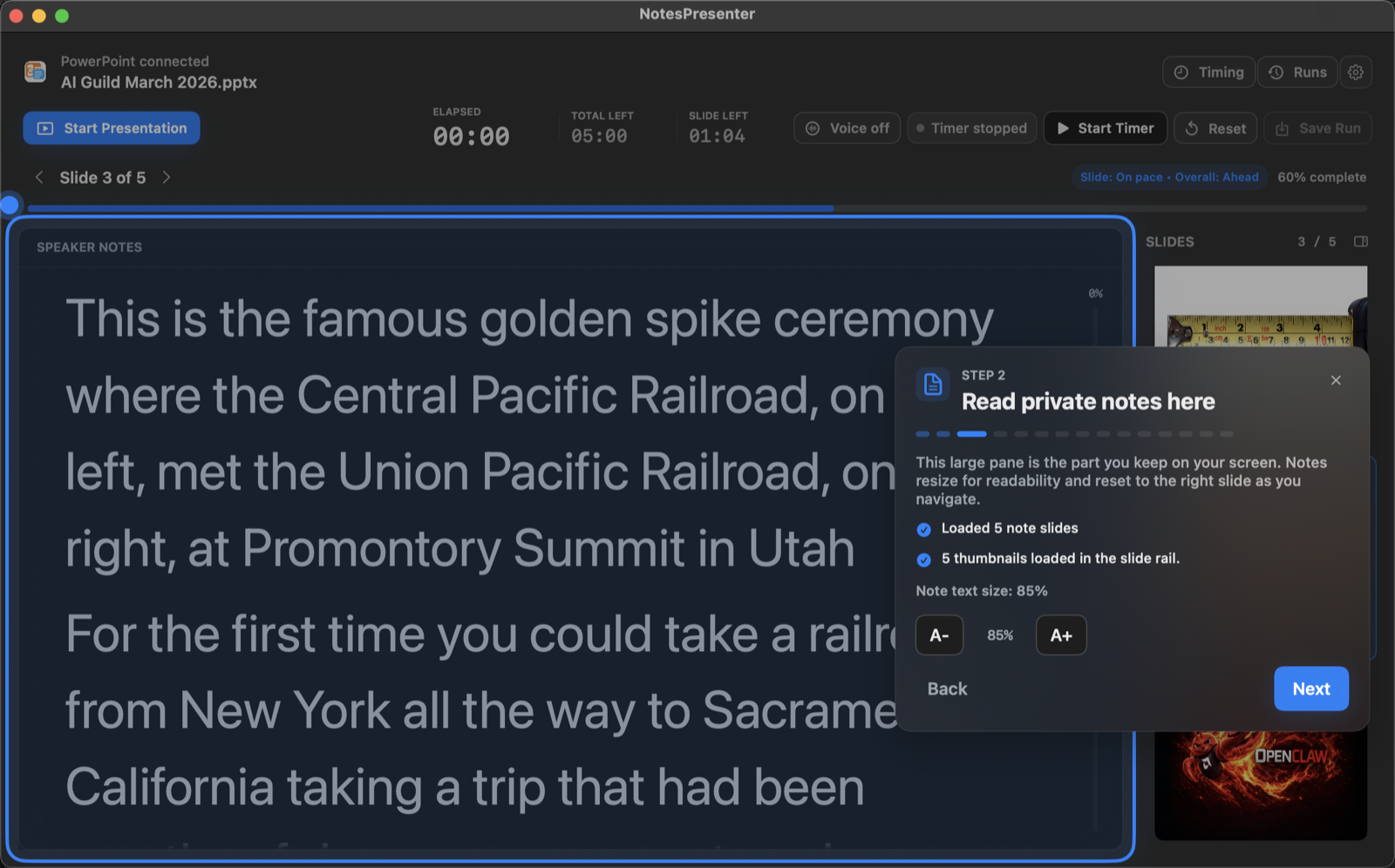
Read the current note, see slide thumbnails, and keep pacing visible beside the deck.
- 3
Share only the slide window
For remote teaching, share PowerPoint only so NotesPresenter remains private.
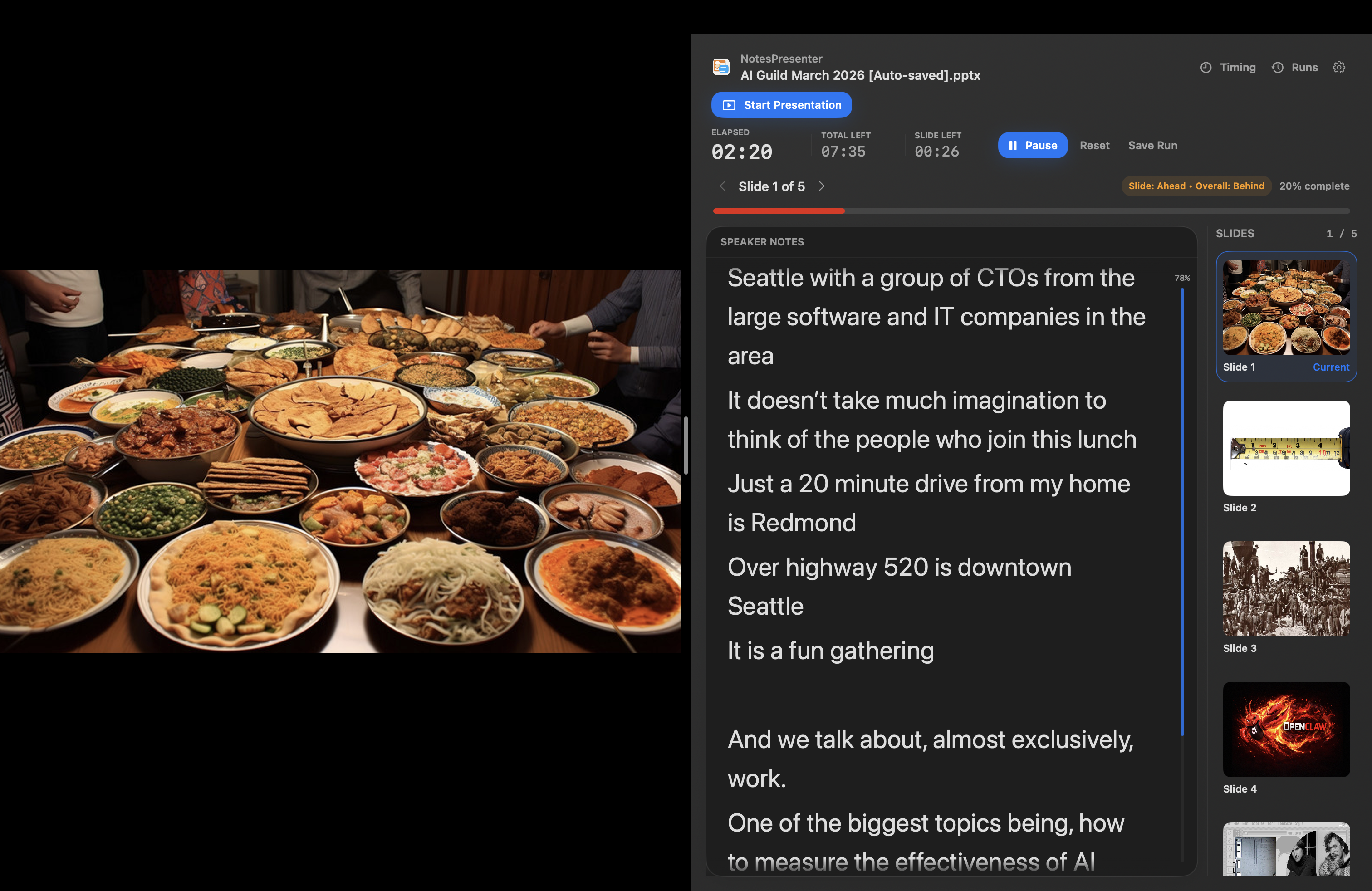
Presentation workflow
Share the deck. Keep the notes.
The safest one-screen setup is simple: prepare notes locally, share only PowerPoint, and keep NotesPresenter visible to you.
Default sharing rule
Choose the PowerPoint window in Zoom, Teams, or Meet. Do not share the full desktop.
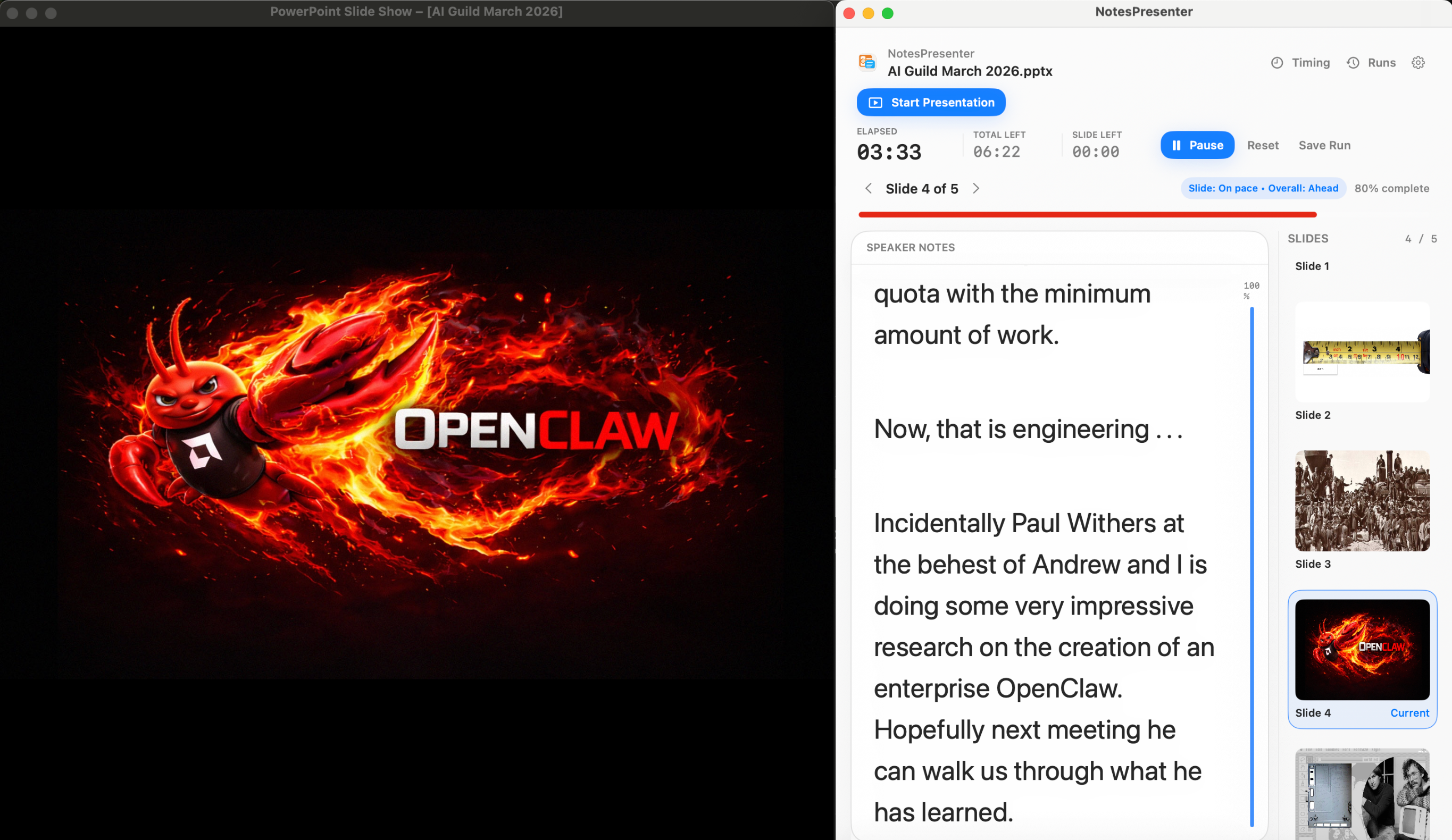
Step 01
Open the deck
Load your PowerPoint file in NotesPresenter so your slide notes and timing plan are ready beside the deck.
You see
The deck notes, slide thumbnails, and timing plan before the presentation starts.
Audience sees
Nothing yet. This is your private setup step.
Result
Your speaker notes are ready before Zoom, Teams, or Meet starts sharing.
Onboarding flow
Learn the workflow before your first talk.
The onboarding walkthrough covers deck connection, private notes, presentation start, and timing so the one-screen setup is clear before you go live.
View onboarding flow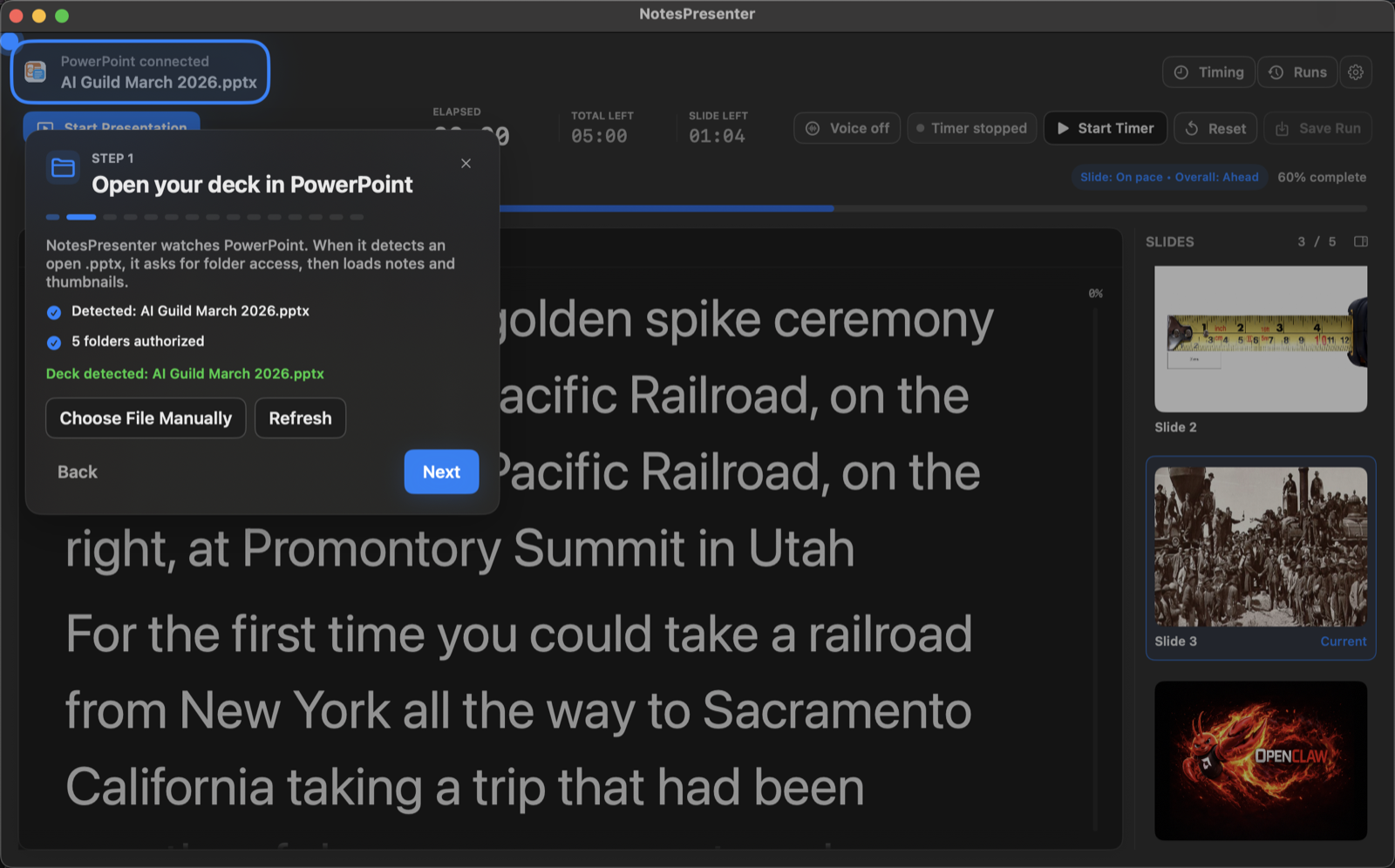
FAQ
Common questions about PowerPoint notes for teachers on Mac.
Will students see my teaching notes?
No, if you share the PowerPoint window instead of the full desktop. NotesPresenter stays private on your Mac.
Can I use this for recorded lessons?
Yes. The same setup works for recorded lessons when you need readable notes and timing beside the PowerPoint deck.
Is this useful for in-person teaching?
Yes. It helps when you are teaching from a Mac screen and need lesson notes, slide context, and timing beside PowerPoint.
Is this useful for online classes?
Yes. Share the PowerPoint window in the meeting app and keep NotesPresenter visible locally for private teaching notes.
Does NotesPresenter upload student or lesson material?
No. NotesPresenter reads the PowerPoint file locally and does not require an account or cloud upload.
Can I adjust note readability?
Yes. NotesPresenter includes appearance and note text size settings so lesson notes are easier to read while teaching.
Teach PowerPoint lessons with private notes on one Mac screen.
NotesPresenter gives teachers readable speaker notes, slide context, and timing beside PowerPoint without a second monitor.