
Rehearsal timing
How to rehearse PowerPoint timing on Mac.
NotesPresenter helps you plan per-slide timing, rehearse the talk, and compare target time with actual time before the live presentation.
Short answer
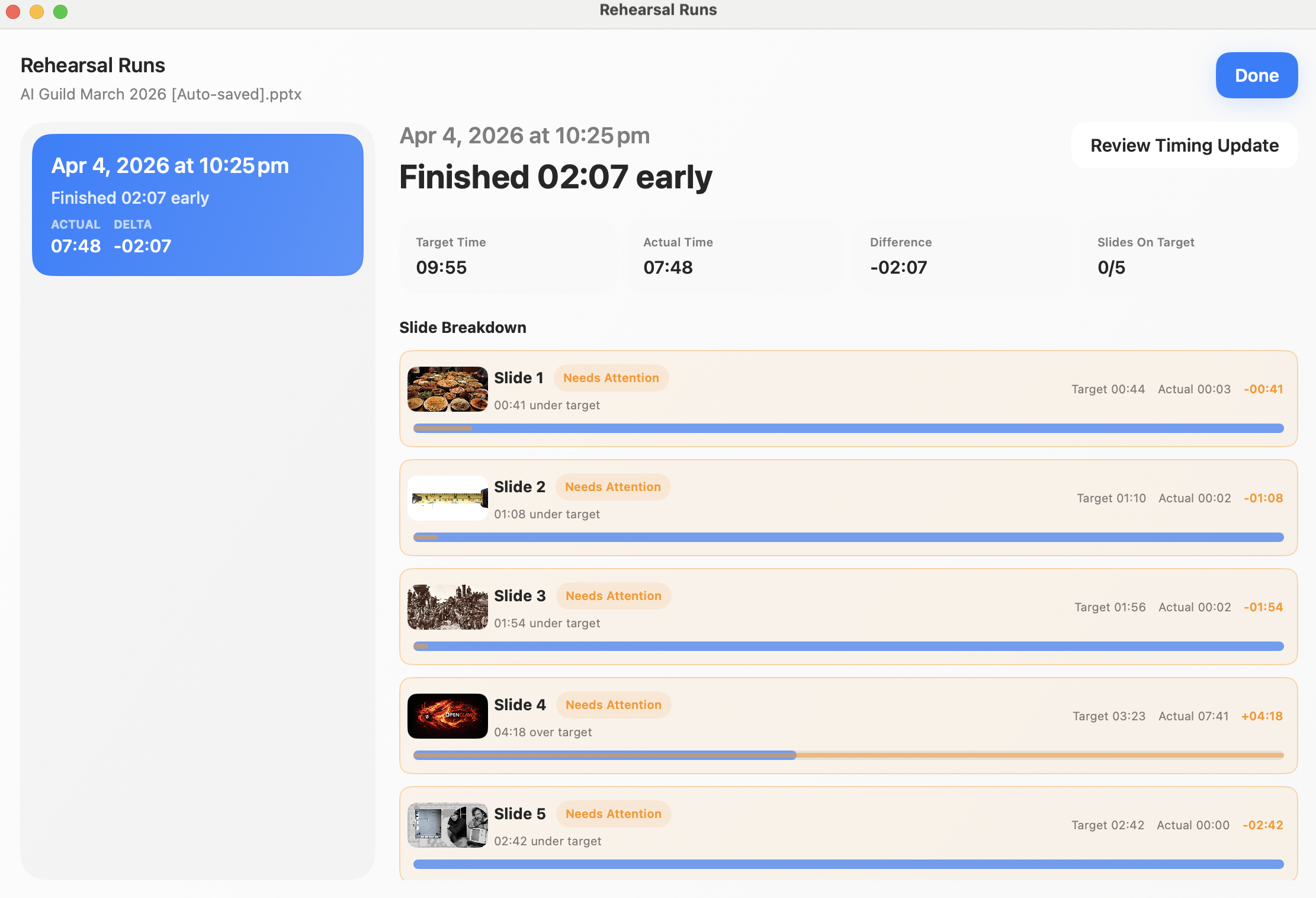
To rehearse PowerPoint timing on Mac, set a total presentation target, review per-slide timing, run the talk, and compare actual timing against the plan in NotesPresenter.
Setup steps
Turn timing into a repeatable rehearsal workflow.
Step 1
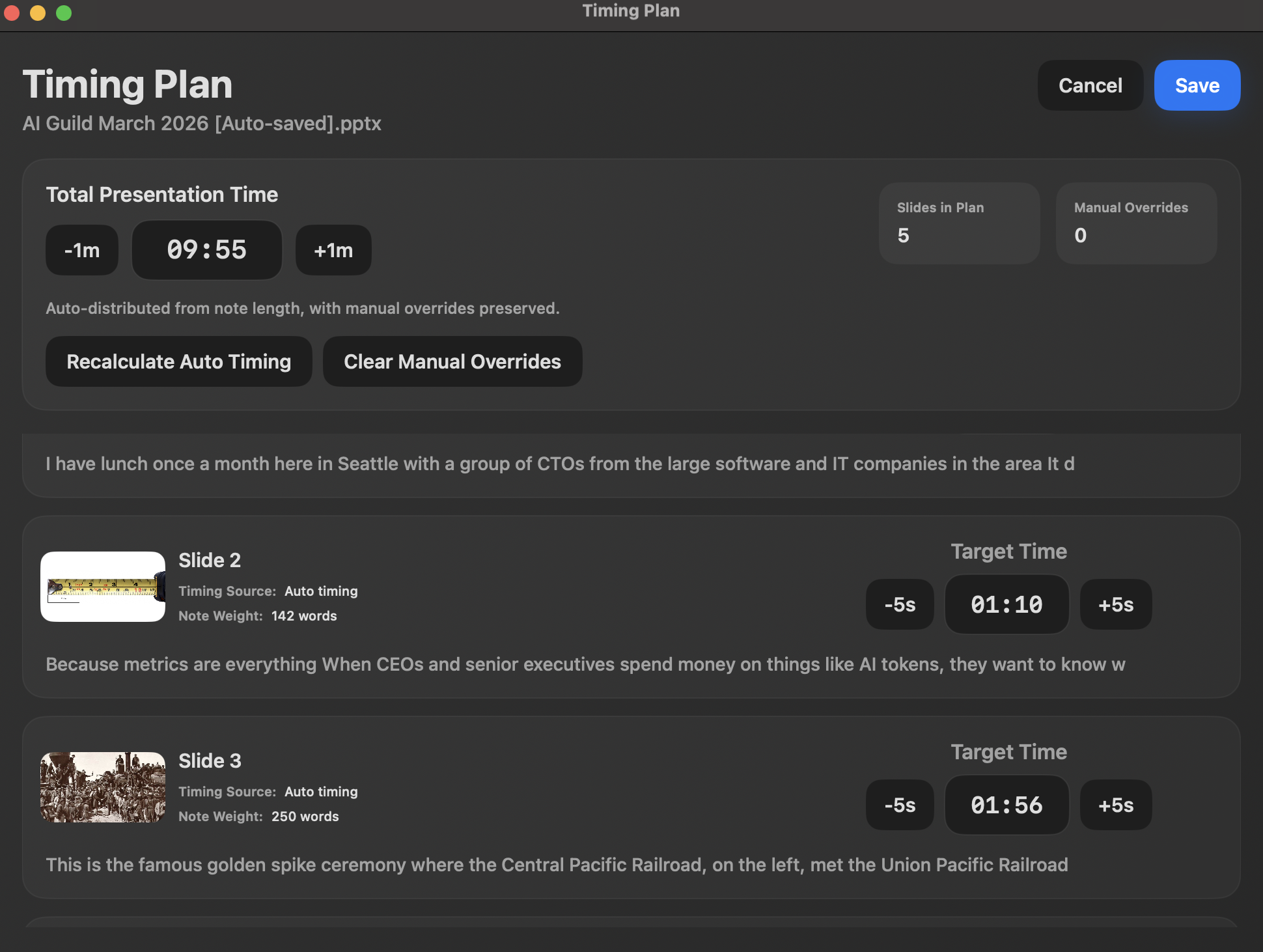
Set a total target time
Decide how long the presentation should be and use NotesPresenter to create a timing plan.
Step 2
Review per-slide targets
Let the app distribute timing across slides and adjust important slides manually.
Step 3
Run a rehearsal
Present the deck while NotesPresenter tracks elapsed time and pace against the plan.
Step 4
Compare target with actual time
Use rehearsal results to identify slides that ran long or short before the real talk.
Timing checklist
Know where time is going before the presentation starts.
Set a realistic total presentation target.
Adjust slides that need more explanation.
Review actual rehearsal time before presenting live.
FAQ
Common questions about rehearsing PowerPoint timing.
Can I rehearse PowerPoint timing without presenting live?
Yes. NotesPresenter supports rehearsal runs so you can compare target and actual timing before a live presentation.
Can I set timing per slide?
Yes. NotesPresenter lets you set a total target and manage per-slide timing for the deck.
Does timing work with speaker notes?
Yes. Notes, current slide context, and timing are part of the same presentation workflow.
Rehearse PowerPoint timing before the live talk.
NotesPresenter helps Mac presenters plan, rehearse, and review timing while keeping PowerPoint notes visible.