
Zoom private notes guide
How to present PowerPoint with notes on Zoom without showing notes.
The safe setup is to share the PowerPoint window, not your full desktop, and keep NotesPresenter open locally for private speaker notes, current slide context, and timing.
Short answer
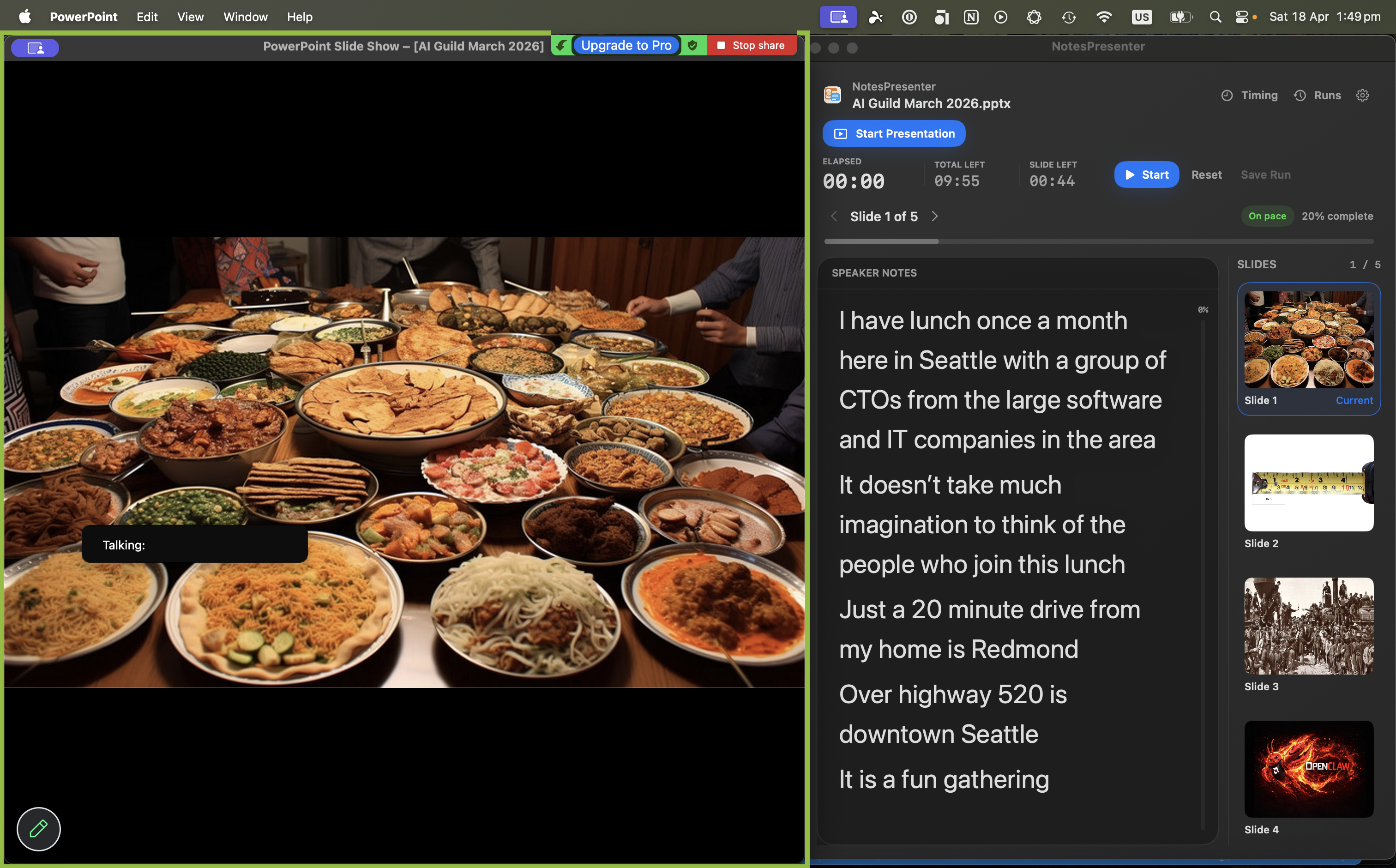
To present PowerPoint with notes on Zoom without showing notes, share only the PowerPoint window in Zoom. Keep NotesPresenter visible on your Mac for private speaker notes, slide thumbnails, current-slide context, and timing.
Setup steps
Keep Zoom sharing narrow and notes local.
Step 1
Open the PowerPoint deck in NotesPresenter
Load your deck so NotesPresenter can show speaker notes, slide thumbnails, current-slide context, and timing before you join the Zoom call.
Step 2
Start the slide show in PowerPoint
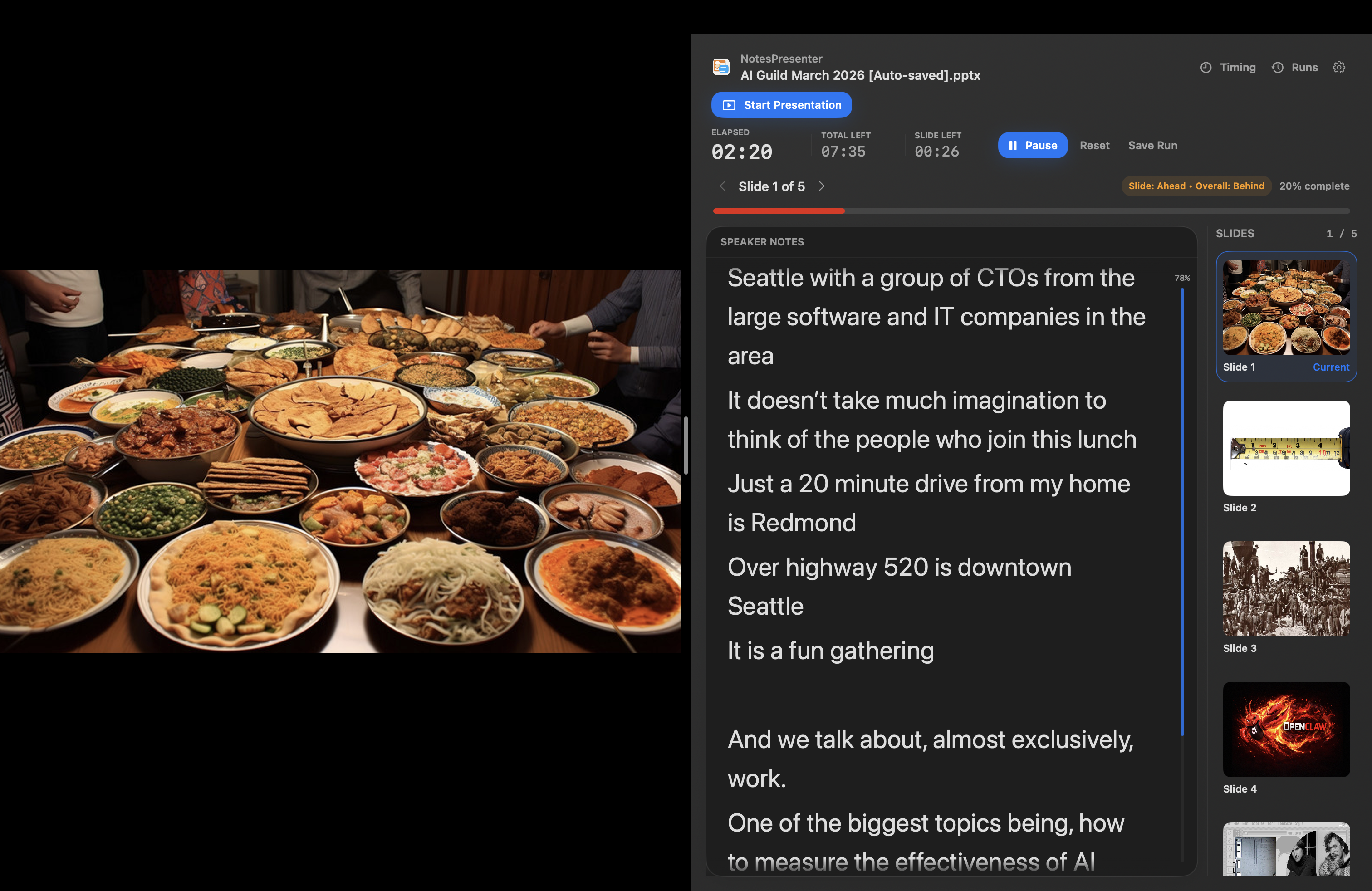
Keep PowerPoint open as the window you plan to share. Arrange NotesPresenter beside it on the same Mac screen.
Step 3
Share only the PowerPoint window in Zoom
In Zoom screen sharing, select the PowerPoint presentation window instead of the full desktop. This is the key step that keeps notes private.
Step 4
Read notes locally while the audience sees slides
Zoom viewers see the PowerPoint deck. You keep NotesPresenter visible locally for notes, current-slide context, and pace signals.
Avoid these mistakes
The notes stay private only when the shared window is PowerPoint.
Do not share the entire desktop if NotesPresenter is visible.
Do not put notes in a separate document inside the shared area.
Do not switch Zoom sharing to another window without checking what attendees can see.
FAQ
Common questions about PowerPoint notes in Zoom.
Will Zoom attendees see my PowerPoint speaker notes?
No, not if you share only the PowerPoint window. Attendees see the shared PowerPoint window, while NotesPresenter remains visible only on your Mac.
Can this work with one monitor?
Yes. NotesPresenter is built for one-screen Mac presenting, so PowerPoint and private notes can sit side by side.
Do I need to upload my PowerPoint file?
No. NotesPresenter reads the PowerPoint file locally on your Mac and does not require an account or cloud upload.
What if I accidentally share my whole desktop?
If you share the entire desktop, viewers may see NotesPresenter. Stop sharing and restart Zoom sharing with only the PowerPoint window selected.
Use private PowerPoint notes in your next Zoom call.
NotesPresenter is built for Mac presenters who need PowerPoint notes, current slide context, and timing while sharing only the deck.