
One-monitor presenter view
How to use PowerPoint presenter view with one monitor on Mac.
When PowerPoint Presenter View expects another display, NotesPresenter gives you a practical one-monitor workflow with private notes, slide context, and timing beside the deck.
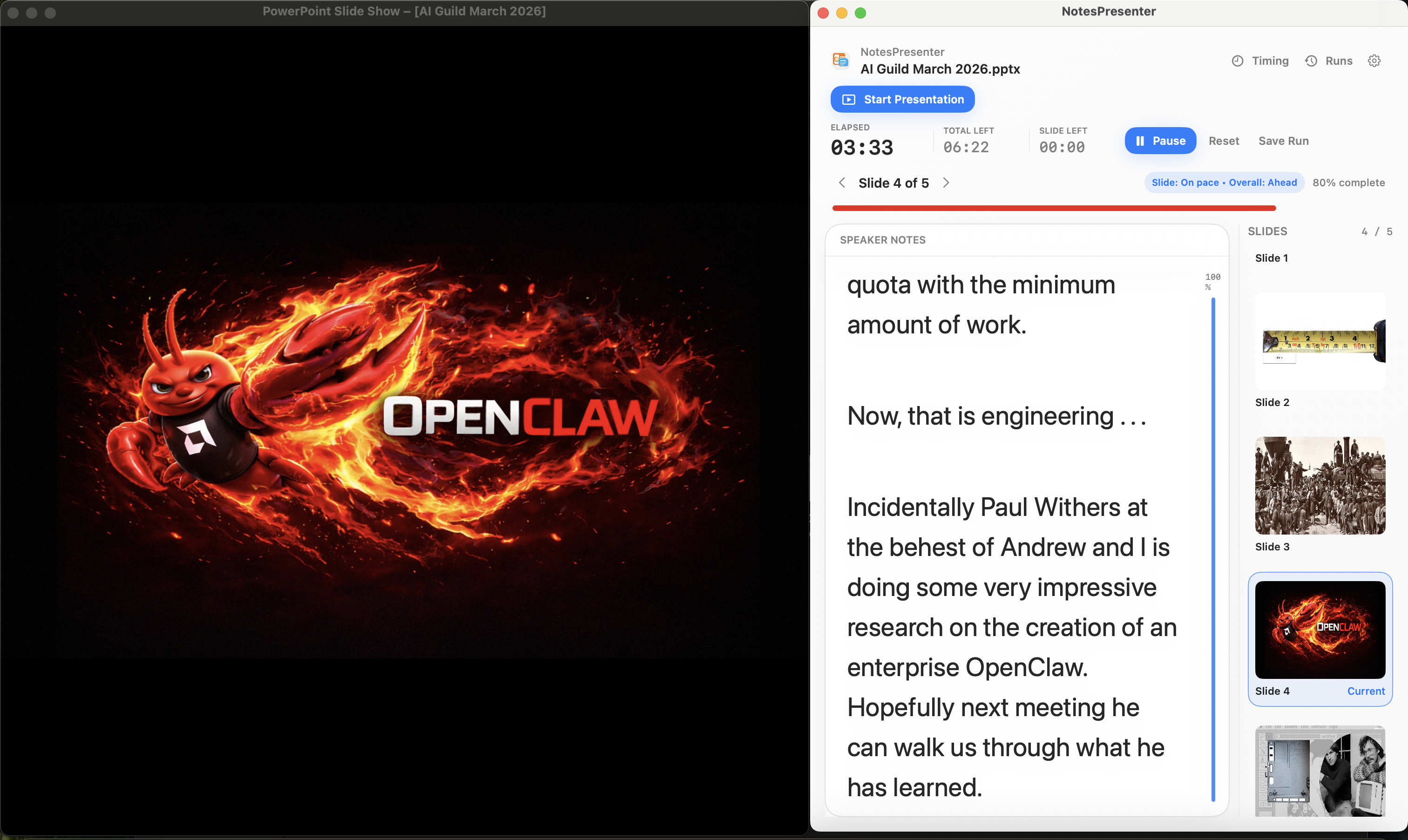
Short answer
To use PowerPoint presenter notes with one monitor on Mac, place PowerPoint and NotesPresenter side by side. Share only the PowerPoint window if you are in a video call, and keep NotesPresenter local for notes and timing.
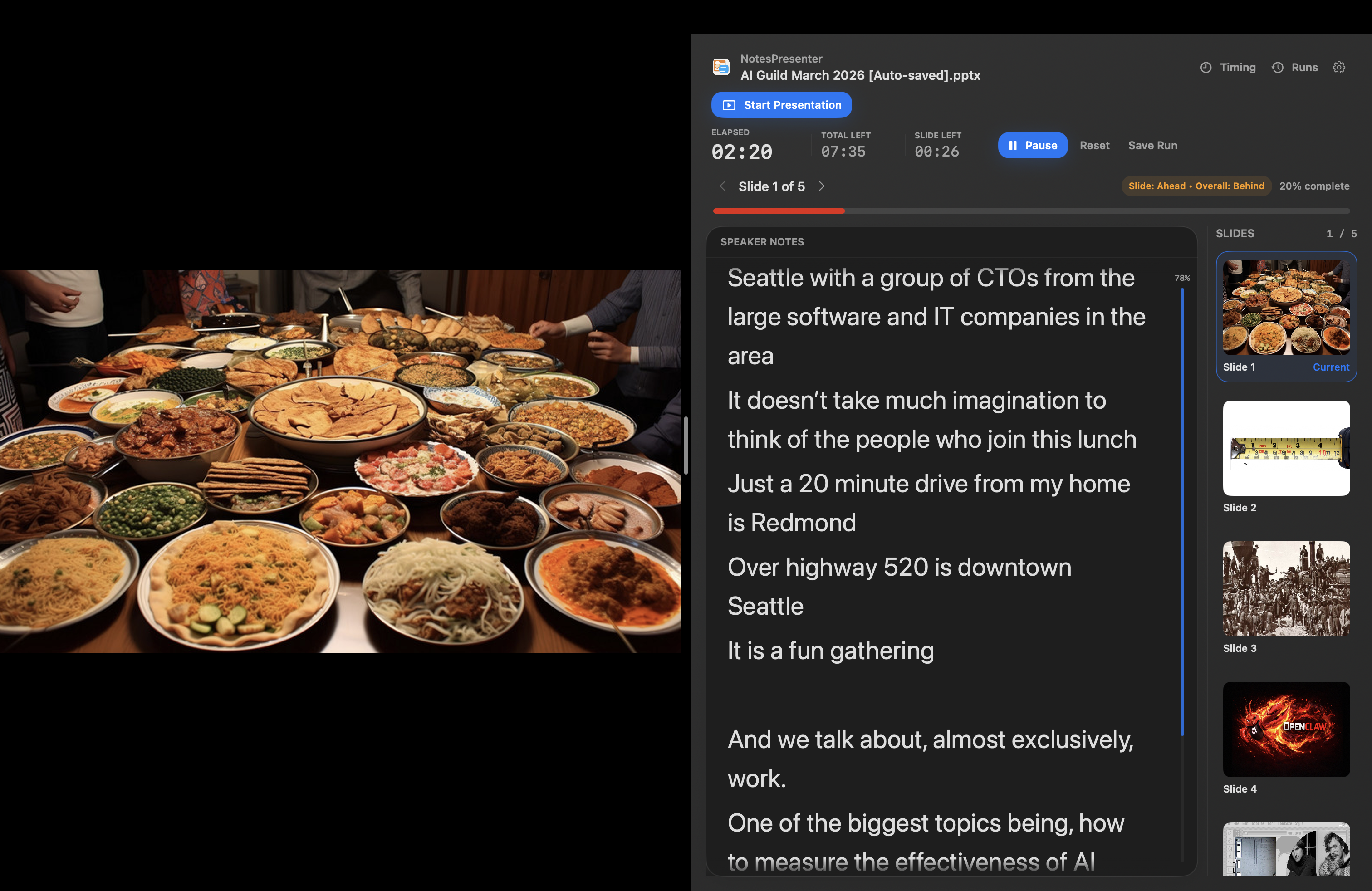
Setup steps
Build a one-monitor presenter setup.
Step 1
Open your deck in NotesPresenter
Load the PowerPoint file so NotesPresenter can read speaker notes and show slide thumbnails.
Step 2
Open PowerPoint on the same monitor
Keep PowerPoint visible as the presentation window and arrange NotesPresenter beside it.
Step 3
Adjust note size before presenting
Use readable note sizing and appearance so you do not need to switch windows while speaking.
Step 4
Share or present only the deck
If you are in a meeting app, share PowerPoint only. If you are rehearsing, use NotesPresenter timing and current-slide context.
One-monitor checklist
Keep the workflow simple before the audience joins.
Keep PowerPoint and NotesPresenter visible at the same time.
Use the PowerPoint window as the shared content in meeting apps.
Check note size and timing before you start the presentation.
FAQ
Common questions about PowerPoint presenter view with one monitor.
Can PowerPoint presenter notes work with one monitor?
Yes. NotesPresenter is built for the one-monitor workflow where notes, current slide context, and timing sit beside PowerPoint.
Does this require changing my PowerPoint deck?
No. NotesPresenter works with the PowerPoint file and reads the slide notes locally on your Mac.
Can I use this in Zoom, Teams, or Google Meet?
Yes. Share the PowerPoint window in the meeting app and keep NotesPresenter visible only on your Mac.
Present PowerPoint from one Mac monitor.
NotesPresenter gives single-monitor presenters private speaker notes, current-slide context, and timing beside PowerPoint.