
Private screen sharing
How to keep speaker notes private during screen sharing.
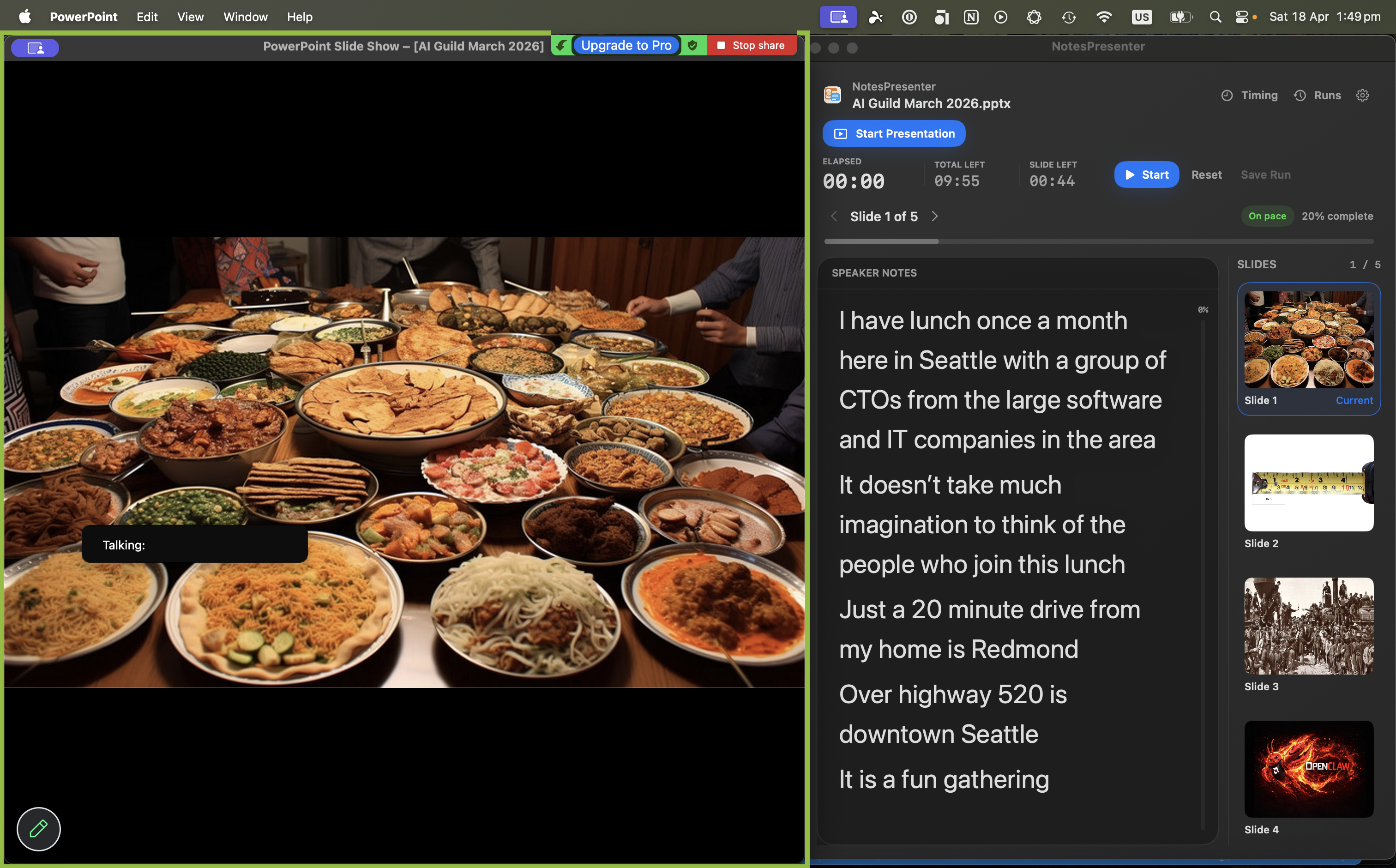
The safest pattern is to share the PowerPoint window only, then keep NotesPresenter local for notes, slide context, thumbnails, and timing.
Short answer
To keep speaker notes private during screen sharing, share only the PowerPoint window. Do not share your whole desktop. Keep NotesPresenter visible locally for notes and timing.
Setup steps
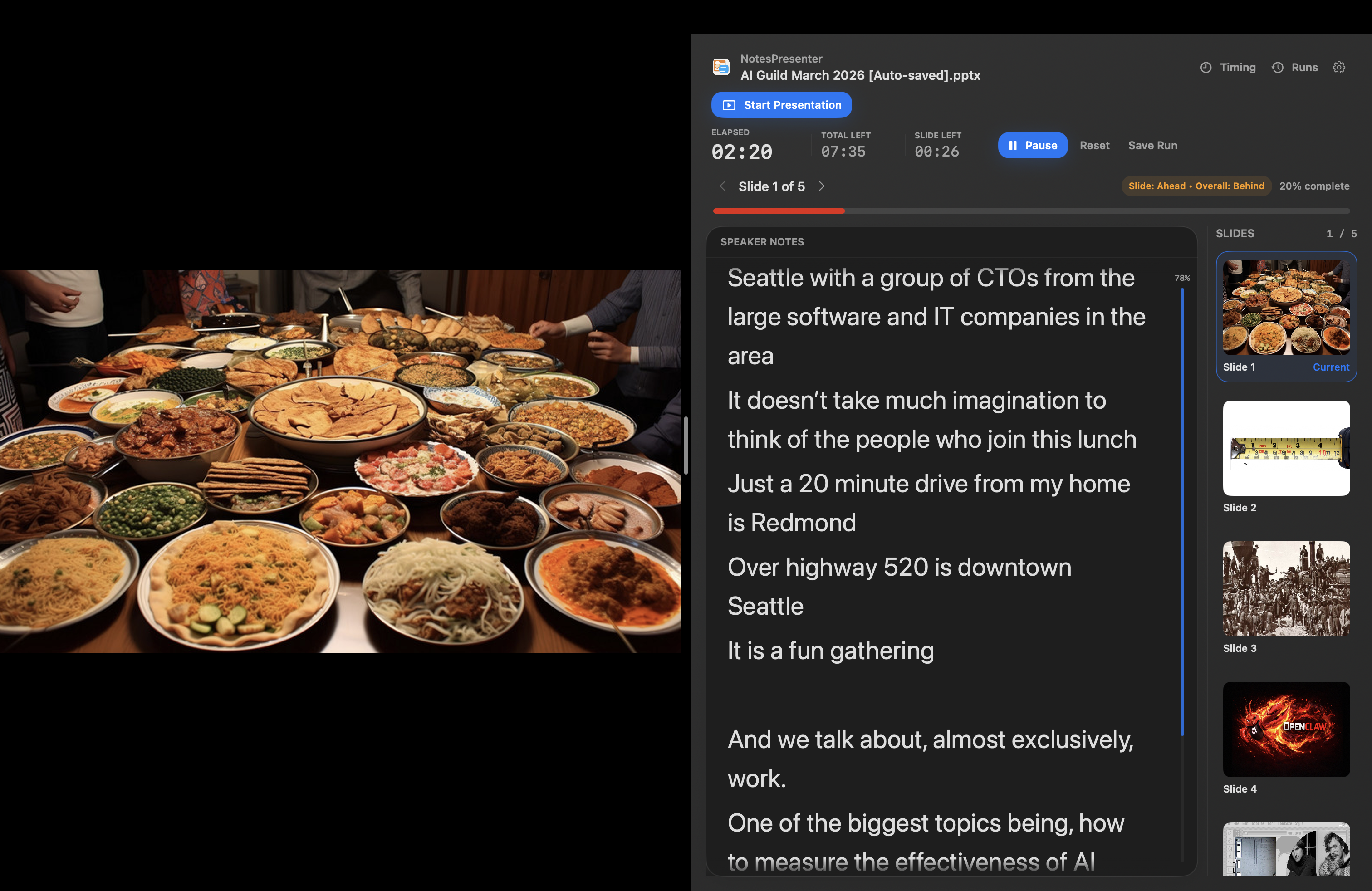
Use window sharing as the privacy boundary.
Step 1
Open notes outside the shared window
Use NotesPresenter as the private notes window and keep PowerPoint as the content window.
Step 2
Choose window sharing in the meeting app
In Zoom, Teams, or Google Meet, pick the PowerPoint window rather than the full screen.
Step 3
Confirm the audience view
Use the meeting preview or a quick check to make sure attendees see the deck only.
Step 4
Keep note changes local
Read notes, watch slide context, and track timing in NotesPresenter without moving it into the shared area.
Privacy checklist
Before you share, check the boundary.
Shared content is PowerPoint, not the whole screen.
NotesPresenter is outside the shared window.
No notes document or chat window is visible to the audience.
FAQ
Common questions about keeping notes private while sharing.
Can attendees see NotesPresenter if I share the PowerPoint window?
No. Window sharing shows the selected PowerPoint window, while NotesPresenter remains local on your Mac.
What happens if I share the entire screen?
If your notes are visible on the desktop, attendees may see them. Use window sharing instead.
Does this work in Zoom, Teams, and Google Meet?
Yes, when the meeting app lets you share a specific PowerPoint window instead of the full desktop.
Keep PowerPoint speaker notes private while sharing.
NotesPresenter is built for single-screen Mac presenters who need private notes, slide context, and timing during calls.